What's new in 1.2.5
Released on 2026-11-07, for macOS (universal) and Windows (x64). It follows the public beta of 2026-10-30; everything the beta had is here, plus the items under Thumbnails and Also in the final 1.2.5.
Picture cards
Section titled “Picture cards”The Plugins panel opens on picture cards. Each card shows the plugin’s picture, its name, a Listed/Unlisted lamp, its rating and its category chips.
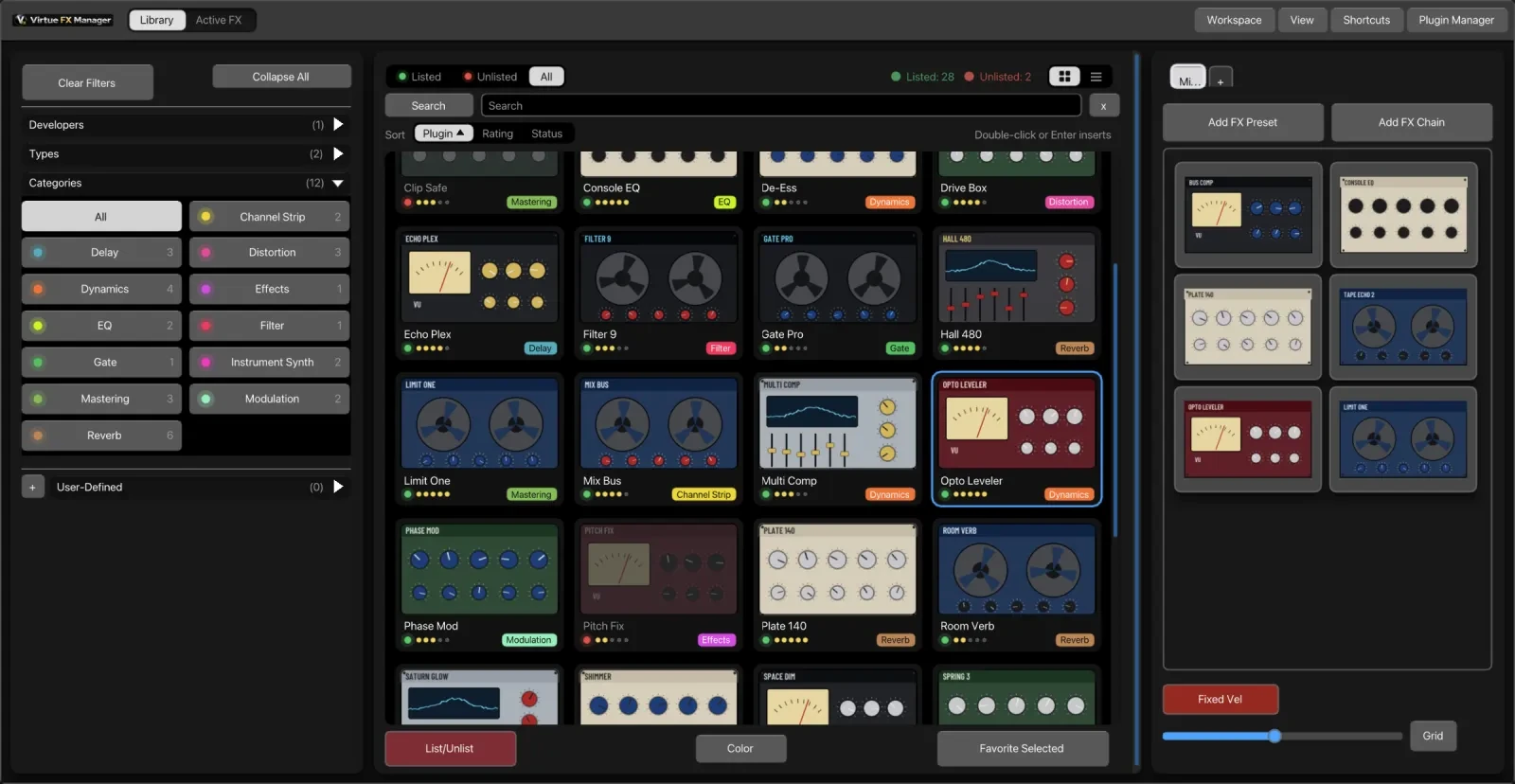
- Double-click or Enter inserts. A single click only selects.
- Cards do everything rows do: Shift and Cmd/Ctrl selection, drag to a track, the right-click menu, and Go to selected.
- Sort sits above the cards: Plugin, Rating or Status. Click the lit one again to reverse the order.
Pictures | List
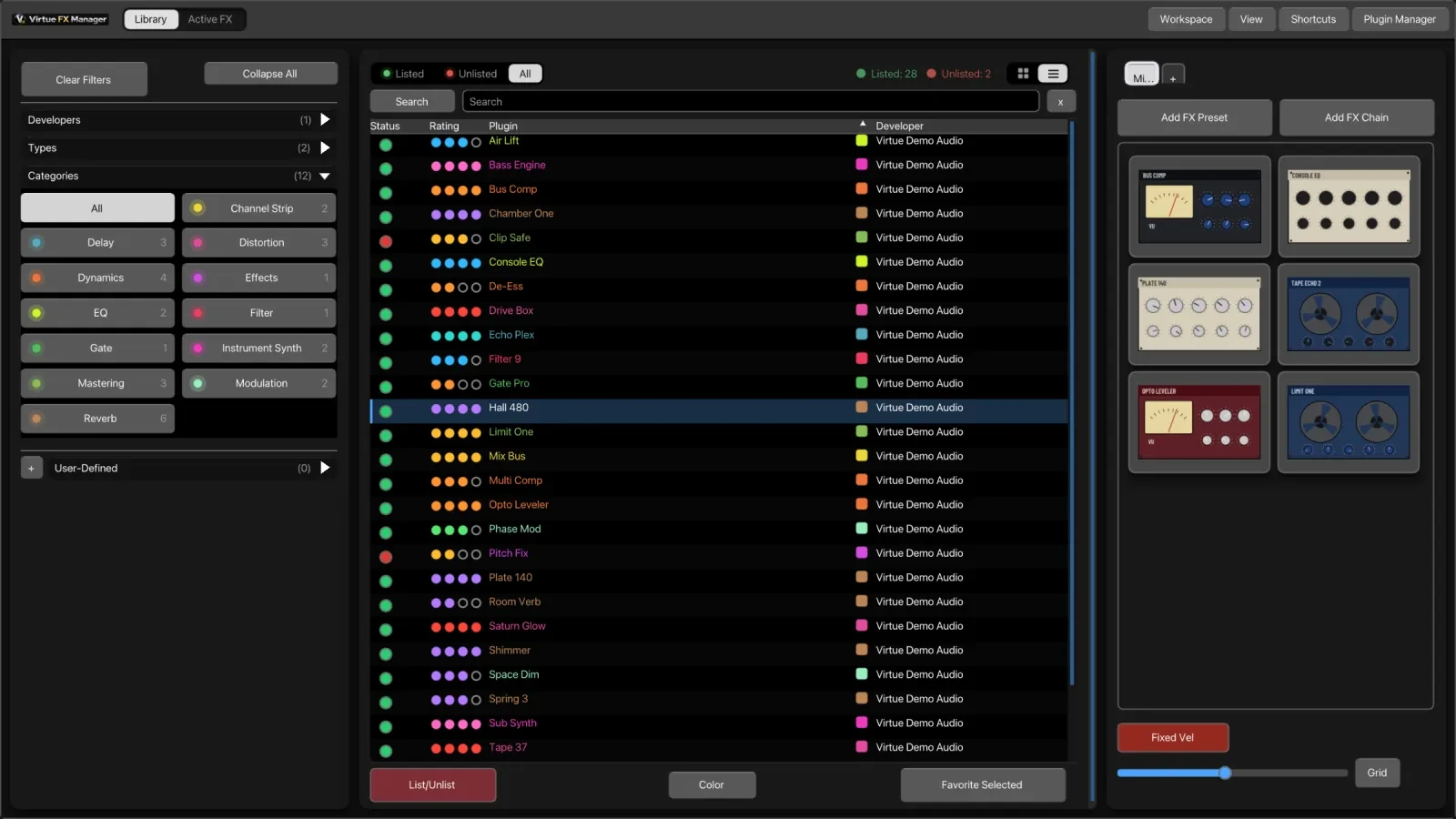
Section titled “Pictures | List”A Pictures | List switch sits at the top right of the Plugins panel. The list is unchanged, and if you saved the List choice, VFxM keeps it.
Modern and Vintage
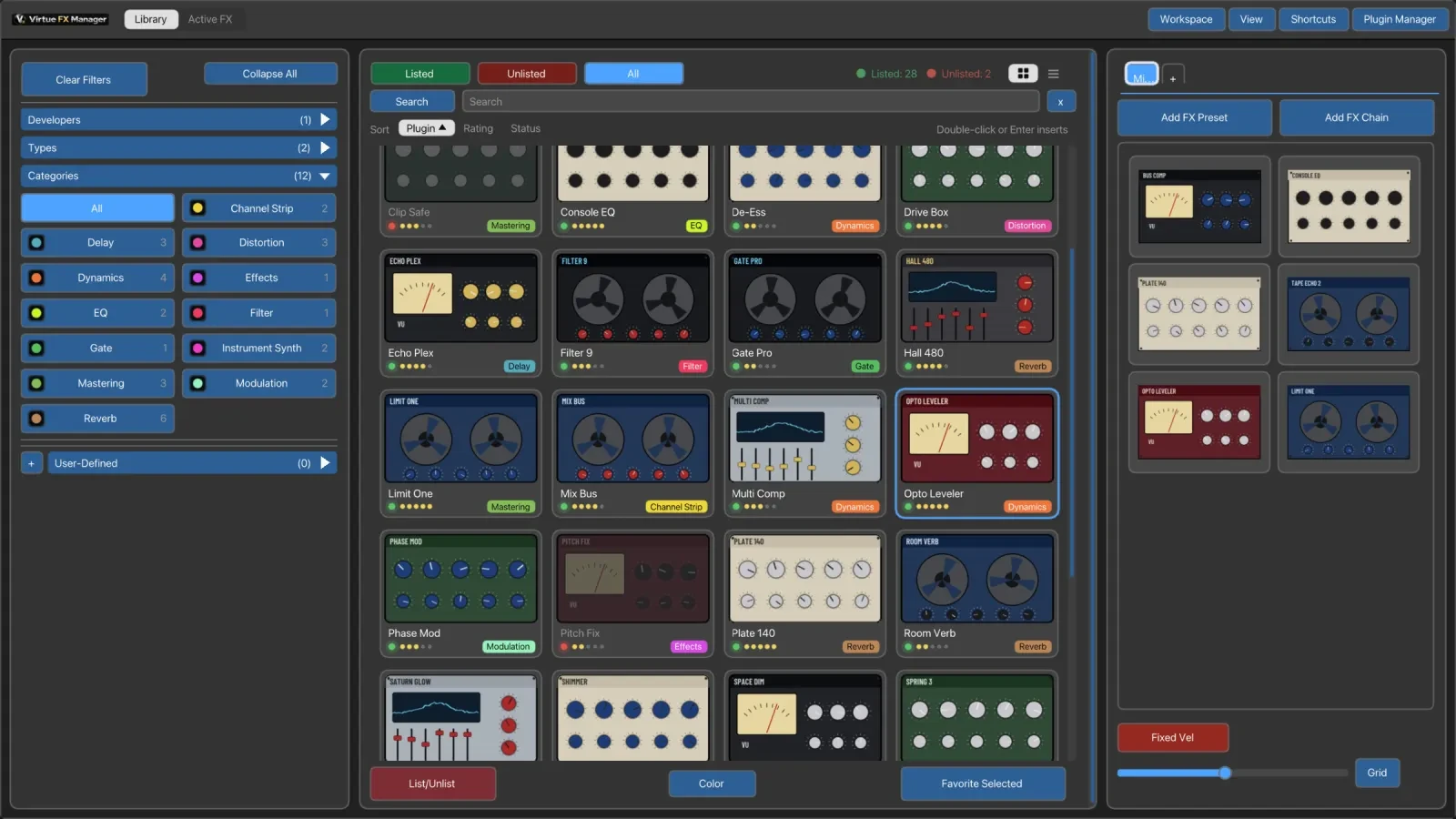
Section titled “Modern and Vintage”Settings → Theme → Style picks one of two looks.
- Modern — raised panels with soft shadows and content in pressed-in wells. Library / Active FX is one switch; Listed / Unlisted / All has green and red lamps; category chips carry colour lamps; section headers are neutral; favourites sit on small raised cards.
- Vintage — the classic look. The new controls appear in it with the theme’s colours, flat.
Every colour comes from the theme, so all the built-in themes and your own still apply in both styles.
Redesigned right-click menus
Section titled “Redesigned right-click menus”Every right-click menu is redesigned: cards, the list, empty space, View, Workspaces, Shortcuts, Help, favourites, tabs, chips, Active FX and Notes. The header of a plugin’s menu shows the plugin’s picture.
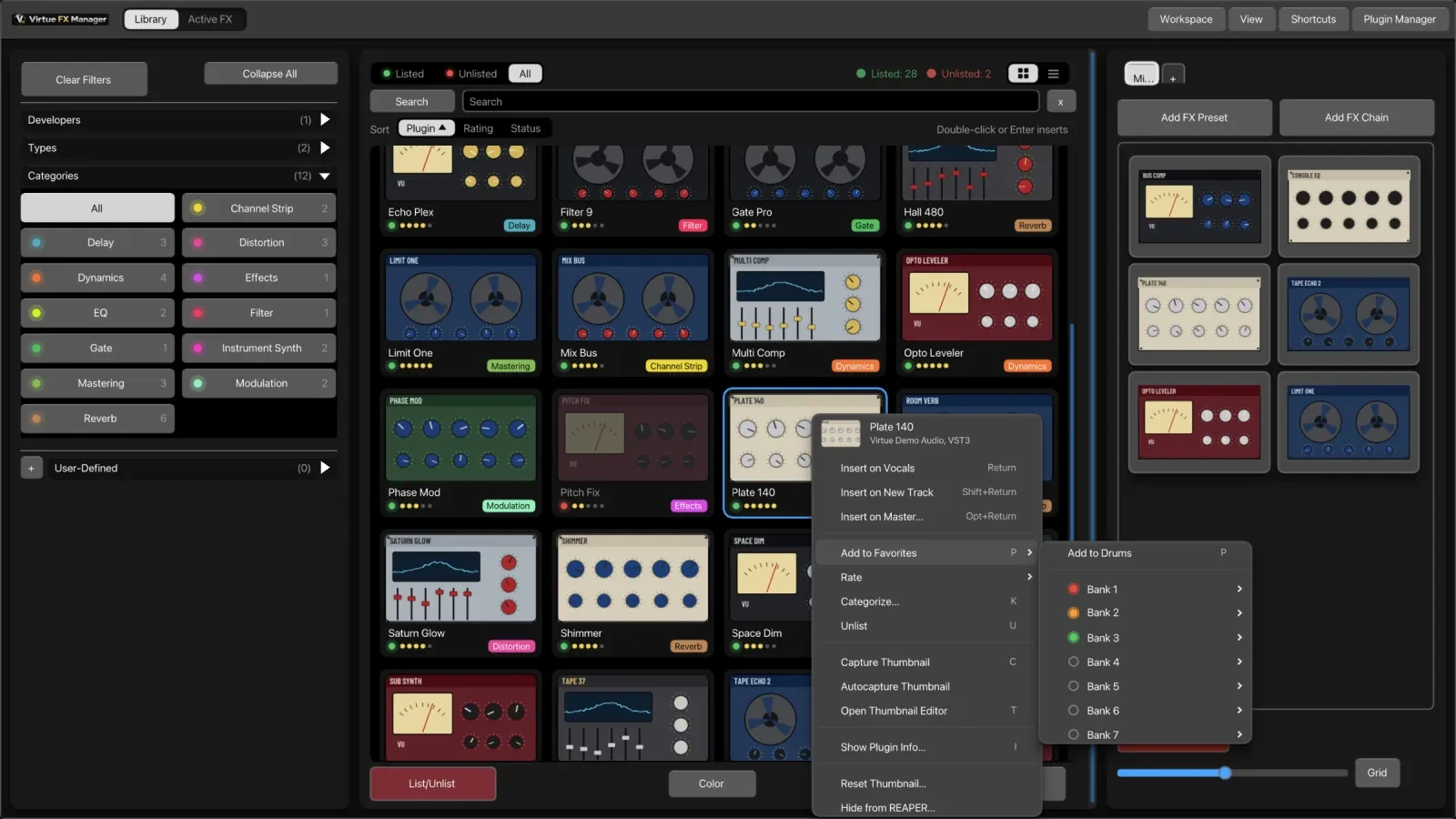
New keys that go with them:
| Key | What it does |
|---|---|
| P | Adds the plugin to the open Favorites tab |
| I | Shows plugin info |
| Shift+Enter | Inserts on a new track |
| Alt+Enter | Asks where on the Master to insert |
| Cmd/Ctrl+A | Selects every plugin shown |
Motion
Section titled “Motion”- Picking a category re-deals the cards, in about half a second. The list view does not animate.
- When you insert, the plugin’s picture flies to the Active FX tab, and the tab glows and shows +1 (or +N).
- REAPER inserts at once. Nothing waits for an animation.
- Settings → Theme → Animations turns all motion off. It is on by default.
Thumbnails, on the Mac and on Windows
Section titled “Thumbnails, on the Mac and on Windows”Thumbnail scans run in a separate helper, outside REAPER: VFxM Capture
Helper on the Mac, and virtue_capture_helper.exe on Windows, installed for
your user and signed with the installer. The helper opens each plugin editor
off-screen, photographs it and closes it, so a plugin that crashes there does
not touch REAPER. On Windows nothing flashes on your screen or takes the
keyboard focus.
- Only REAPER’s own JS effects use a track, and only a temporary one. The helper cannot open JS effects, so the scan puts each one on a temporary track in a scratch project tab of its own, photographs its whole window and removes the track. Your open project is never used: no track in it, no undo step, no change mark, nothing saved. If REAPER cannot open the scratch tab, the JS effects keep their plain card and nothing is touched. VST, VST3, AU and CLAP plugins never go on a track.
- A plain card when there is no picture. A plugin the helper cannot photograph — it crashes, draws nothing, shows a dialog that will not close, or on Windows is a VST2 or CLAP plugin — gets a plain card: developer, name and format. Capture Thumbnail photographs it by hand.
- More pictures the first time, on the Mac: more plugin editors draw on the first try, CLAP plugins are captured, and a VST2 or CLAP plugin without a picture shows its VST3 or AU sibling’s.
- Crash-safe: the scan resumes after a crash or a kill, with no duplicates. Broken plugins show in red with the reason.
- In control: Pause, Stop and Export Diagnostics. The scan window always has Stop, X and Esc.
- Autocapture on one card takes about 1.7 seconds, where it took about 130. The plugin list refreshes in the background.
- Screen Recording, asked once, on the Mac. The first scan asks for Screen Recording, with an explanation. Without it there are no automatic pictures: the scan stops with a message, cards stay plain, and Capture by hand still works.
- A scan never waits for a click. A plugin that opens a dialog while it is being listed or photographed — a plug-in file asking you to locate its folder, a licence or login prompt — is closed for you, and a plugin that stops responding is skipped after 30 seconds, with the reason. VFxM’s own messages wait for the end of the scan, and the first-run helper note is a status line. On Windows and macOS.
- A plug-in file that fails every time is skipped. After five failures in a row from one file — one file can hold hundreds of plugins — the rest of that file is not opened, and its cards stay plain until the file changes or you capture one by hand.
- The helper ends with REAPER. On Windows the helper, and anything a plugin starts, are stopped when REAPER quits or crashes, and a plugin’s dialog is closed within a second without a click.
- VST2 plug-ins get plain cards, and on Windows CLAP plug-ins too. Capture them by hand.
See Auto thumbnail scanner for the whole scan.
Also in the final 1.2.5
Section titled “Also in the final 1.2.5”- A thin picture is shown whole. A by-hand capture much wider or taller than the card, such as the top strip of a JS window, used to be zoomed to fill the card and lose its sides. It now fits inside the card as it is; ordinary plugin pictures fill the card as before.
- Modern follows three colour pickers it used to ignore. Plugin List Background colours its panels and list ground, Window Background the gaps behind the panels, and Modern Button Lit the lit caps and selected chips. A colour you pick, or a theme names, wins; otherwise Modern derives its colours as before, so every palette and theme you saved earlier looks the same.
- No more “<SHELL>” cards. REAPER’s own marker for a plug-in file that holds several plug-ins was listed as a plugin called “<SHELL>”. It is not shown any more; the plug-ins inside it are, as before.
- AU plug-ins from a vendor with a comma in its name now show their own names instead of “<inst>”. Any favourite, note or rating you set on the old “<inst>” card is gone; set it again on the new card.
- The Workspace menu shows Update, Rename and Delete only when a saved workspace is ticked. Rename no longer says a name is already used for a workspace that is gone, and an imported workspace file cannot carry an empty name.
- The Windows installer asks what to do. When it finds VFxM already installed it offers Update to version 1.2.5, Uninstall or Cancel.
Everything else
Section titled “Everything else”- Plug-ins you do not have are left out. Plug-ins REAPER lists but the computer does not have are not listed and not scanned. VFxM checks Audio Units, VST, VST3 and CLAP; JSFX is not checked. They are kept if their folder is on a drive that is not plugged in.
- Shortcuts follow your keyboard layout — AZERTY, QWERTZ and others, Redo included.
- A hover-tips button in the top bar switches every hint on and off. Names and cues always show.
- The licence cache is encrypted with the operating system’s own cryptography.
- Backups from 1.2.3 and later restore in 1.2.5.
- JS effect pictures are drawn by REAPER at 1x, so they are modest in resolution, and a few JS effects get no picture.
- macOS: universal (Intel and Apple Silicon). Windows: x64.