When a new plugin doesn't appear
VFxM does not scan your drives. It reads REAPER’s own plugin cache and shows what is in it. That one fact explains everything on this page: a plugin REAPER has not scanned is a plugin VFxM cannot show you, however the folder on disk looks.
So a newly installed plugin appears in two steps, in this order:
- In REAPER: Preferences → Plug-ins → VST (and AU or CLAP, as applies) → Clear cache/re-scan, so REAPER finds the new file.
- In VFxM: Plugin Manager → Database & Scanning → Reload / Scan Plugins, so VFxM re-reads the cache REAPER just rewrote.
Step 2 on its own re-reads the same cache and finds the same nothing.
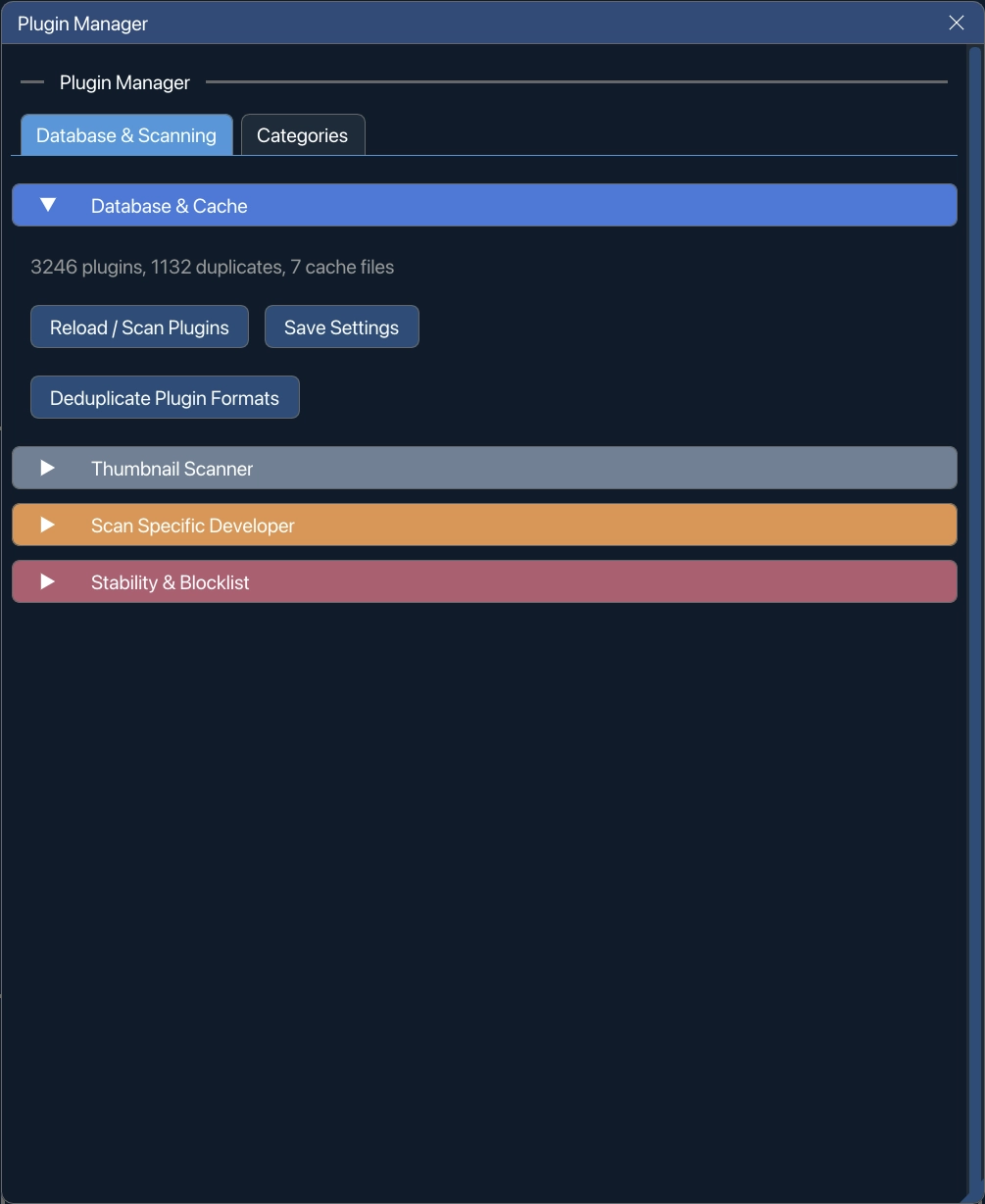
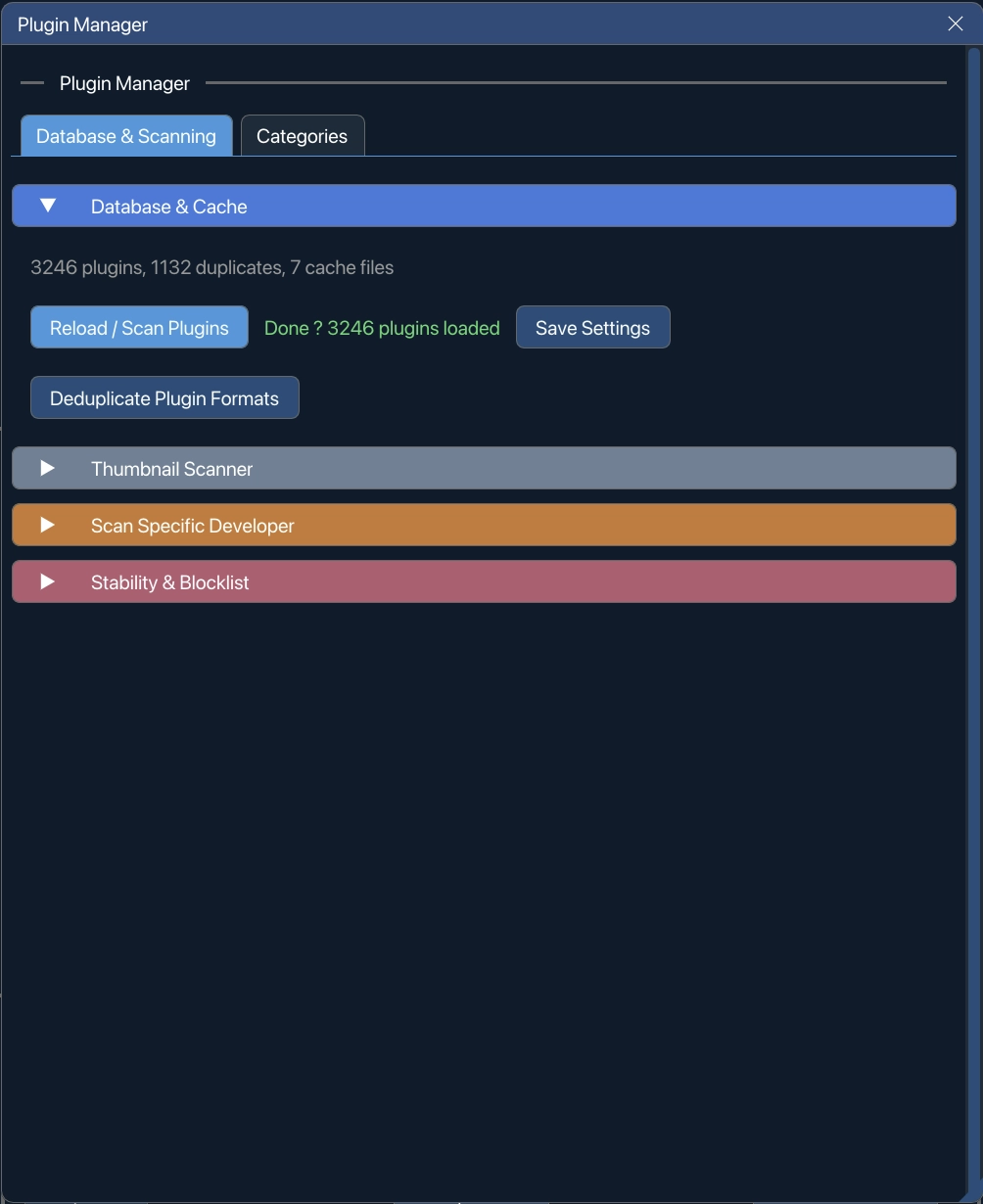
The counts above the button — plugins, duplicates, cache files — are what VFxM read last time, so after a reload you can see the number move.
Deduplicate Plugin Formats
Section titled “Deduplicate Plugin Formats”Most plugins install as two or three formats at once, and each one is a separate row. Deduplicate Plugin Formats, in the same section, hides the copies you do not want in one pass.
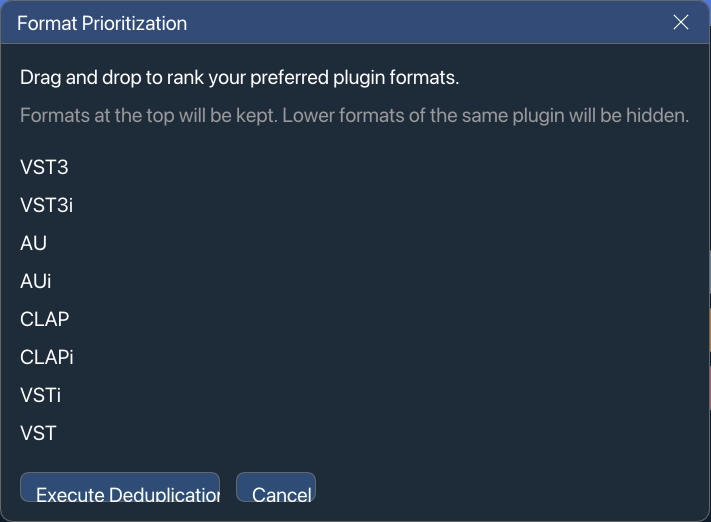
It opens Format Prioritization, a ranked list of the formats — CLAPi, CLAP, VST3i, VST3, AUi, AU, VSTi, VST. Drag the rows to rank them your way: the highest format a plugin has is kept, and its lower copies are hidden. Then click Execute Deduplication, or Cancel to leave everything as it is.
Inspect Plugin Record
Section titled “Inspect Plugin Record”When a plugin is behaving oddly rather than simply missing, right-click it in the plugin list → Inspect Plugin Record. It opens the record VFxM holds for that plugin, exactly as it read it:
- the display name, internal id, key, type, family, developer and category;
- whether it is listed, unlisted, or force-hidden;
- which cache file it came from, the line number in it, and the raw text of that line;
- its duplicate key, its thumbnail stem and the thumbnail path;
- whether it looks like a shell or alias of another plugin, and which plugins those are.
Copy Diagnostics puts the whole record on the clipboard. If you write to support about one plugin, this is the thing to paste — it answers most of the questions a first reply would otherwise have to ask.
See also
Section titled “See also”- Auto thumbnail scanner — sibling tab in the same Plugin Manager screen.
- A removed plugin is still listed — the opposite problem.