What's new in v1.1.1
This release is about the things you reach for every session — and about trusting VFxM to stay out of your way while you work.
Your licence stays where you put it
Section titled “Your licence stays where you put it”If you were one of the people typing your serial in again after every restart, that is over. Licences now carry across restarts on their own, and the fix applies automatically the first time you run this version.
There is also no longer any need to reconnect after time offline. Activate once, and the machine stays licensed — indefinitely, including a studio computer that never touches the internet.
Favorite Banks — room to grow
Section titled “Favorite Banks — room to grow”As a favorites collection grows, the tab row fills up and eventually becomes a long, crowded line you have to hunt through. Banks exist to fix that.
Instead of one endless row of tabs, you get seven complete, independent sets of favorites, switched from the folder icon at the left of the tab row — a second level of organisation sitting above tabs, and entirely optional. Keep one bank for mixing and another for tracking, or one per client, per genre, per studio.
If a single row of tabs suits you, nothing changes: you simply stay in Bank 1.
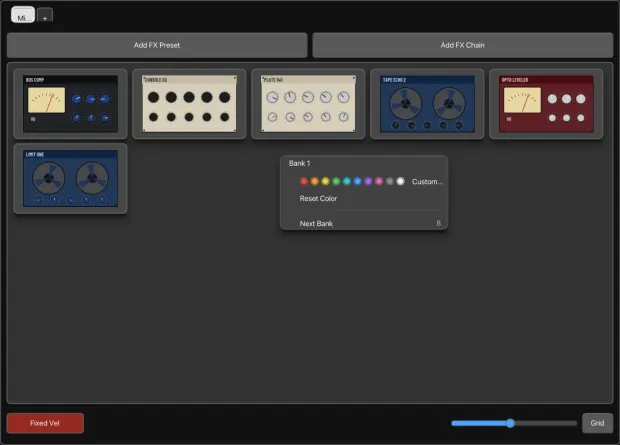
- Each bank holds its own tabs and its own contents.
- Right-click the folder icon to give a bank its own colour. The icon takes that colour, so you can tell at a glance which bank you are in.
- Banks that hold favorites appear in bold in the switcher; empty ones are dimmed.
- Each bank remembers which of its tabs you had open.
- Right-click any favorites tab for Move to Bank, which sends that tab and everything in it to another bank.
Your own categories, properly
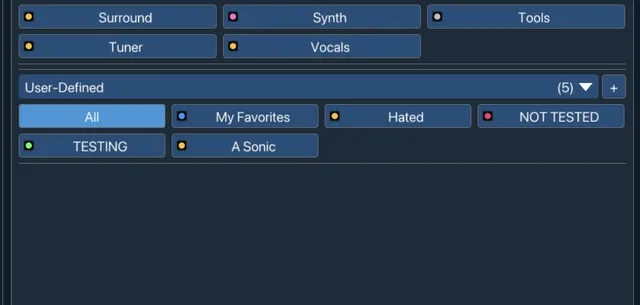
Section titled “Your own categories, properly”- A + button in the filter sidebar creates a custom category on the spot, without opening the Categories manager.
- Right-click any category chip — built-in or your own — to open a colour wheel and set its colour.
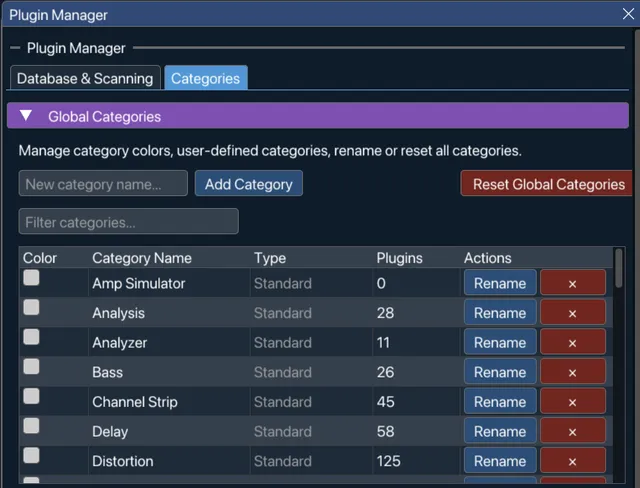
- Reset Categories to Default restores the scanned categories, clears overrides and resets custom colours.
- Global Categories is now a collapsible section styled like the rest of Settings.
- If you try to rename, recolour or delete one of the standard categories, VFxM warns you first and offers to turn the change into a user-defined category instead — so you cannot quietly break your own filing system.
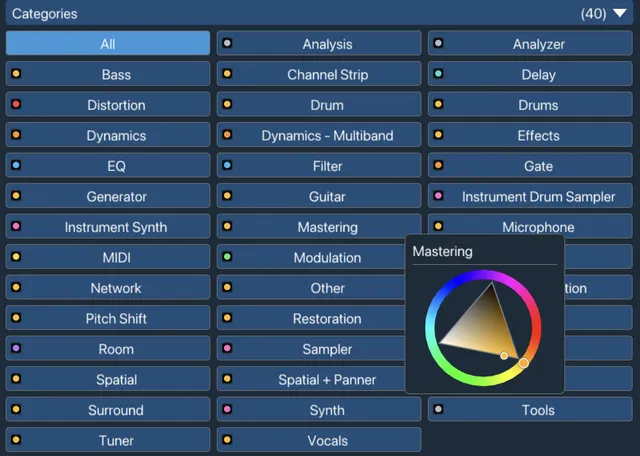
See every category a plugin belongs to
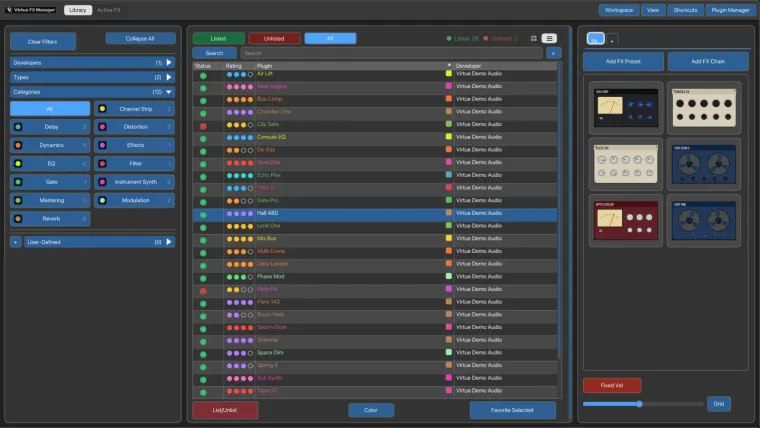
Section titled “See every category a plugin belongs to”The small colour square beside each plugin now shows every category that plugin belongs to — up to four at once — rather than one blended colour.
Hover the square and a tooltip lists all of them by name. The dots are larger, better spaced, and right-aligned in the column, so plugin names still start flush left however many categories a plugin has.
Categorizing is a normal window
Section titled “Categorizing is a normal window”The Categorize dialog is an ordinary movable, resizable panel rather than a blocking modal, and it resizes properly with the window.
The plugin right-click menu no longer splits Categorize Plugin… and a separate Set Category submenu into two entries doing nearly the same thing. One Categorize entry opens the full picker.
A browser that sorts how you want
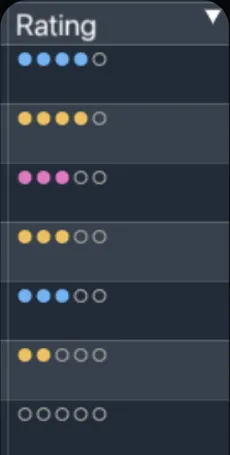
Section titled “A browser that sorts how you want”- Click the Rating, Plugin or the new Developer column header to sort by it; click again to reverse.
- The header row stays pinned while you scroll.
- Visible dividers separate the columns.
- A Color/Uncolor toggle sits at the bottom of the list, in step with the matching setting.
- Developer names are cleaned up automatically, so you no longer read “Pro-Q 3 (FabFilter)” in a list beside a column that already says FabFilter.
- A visible × clears the search box.
VFxM opens where you left it
Section titled “VFxM opens where you left it”Position, size and panel proportions are all remembered between sessions. Move the window, resize the panels, quit REAPER — it comes back exactly as you had it.
If the display it was last used on is gone, VFxM brings itself back onto a screen you can see. On first launch, panels are fitted to your actual window size rather than fixed percentages, so plugin names are not cut off before you have touched anything.
Broken plugins can’t hide
Section titled “Broken plugins can’t hide”An effect that failed to load — an uninstalled plugin, or one taken offline — is shown in red in the Active FX tab and clearly marked.
Right-click it to take it offline, bring it back, or try loading it again. A small reload icon sits on the row itself, and Alt+click removes an effect outright.
Bring your REAPER setup across
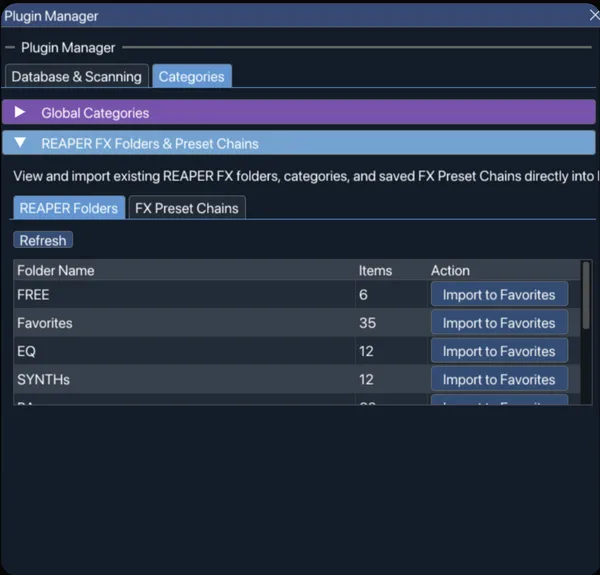
Section titled “Bring your REAPER setup across”A new section in the Categories tab lists your existing REAPER FX folders
and your saved .RfxChain files, each with a one-click Import to Favorites.
Imported chains behave like any other favorite now — artwork, notes and renaming all work on them — and they appear in the favorites grid with their own badge, loading on a double-click or a drag.
You can also give an individual plugin or chain its own display name inside a favorites tab, without changing how it appears anywhere else.
Smaller things you will notice
Section titled “Smaller things you will notice”- Dragging a plugin carries its thumbnail with the cursor, not just text.
- Hovering Add FX Preset or Add FX Chain with no track selected shows a clear orange prompt on the button itself instead of interrupting you with a popup.
- Display scaling now runs from 50% to 150%. (In 1.1.1 only. It is called Interface Scale now and runs from 75% to 200% in eight steps — see Interface Scale.)
- Dialogs stay inside the VFxM window and no longer grey out everything behind them, so you can still read what you were working on.
- Escape closes whatever is on top rather than the whole application.
- The splash screen shows your installed version, can be switched off from either the splash itself or Preferences, and has a solid background so it stays readable on light themes.
- Buttons fit their labels in every supported language.
Alongside these, this release carries dozens of smaller corrections across the browser, favorites and settings — most of them found and reported by people using VFxM day to day.