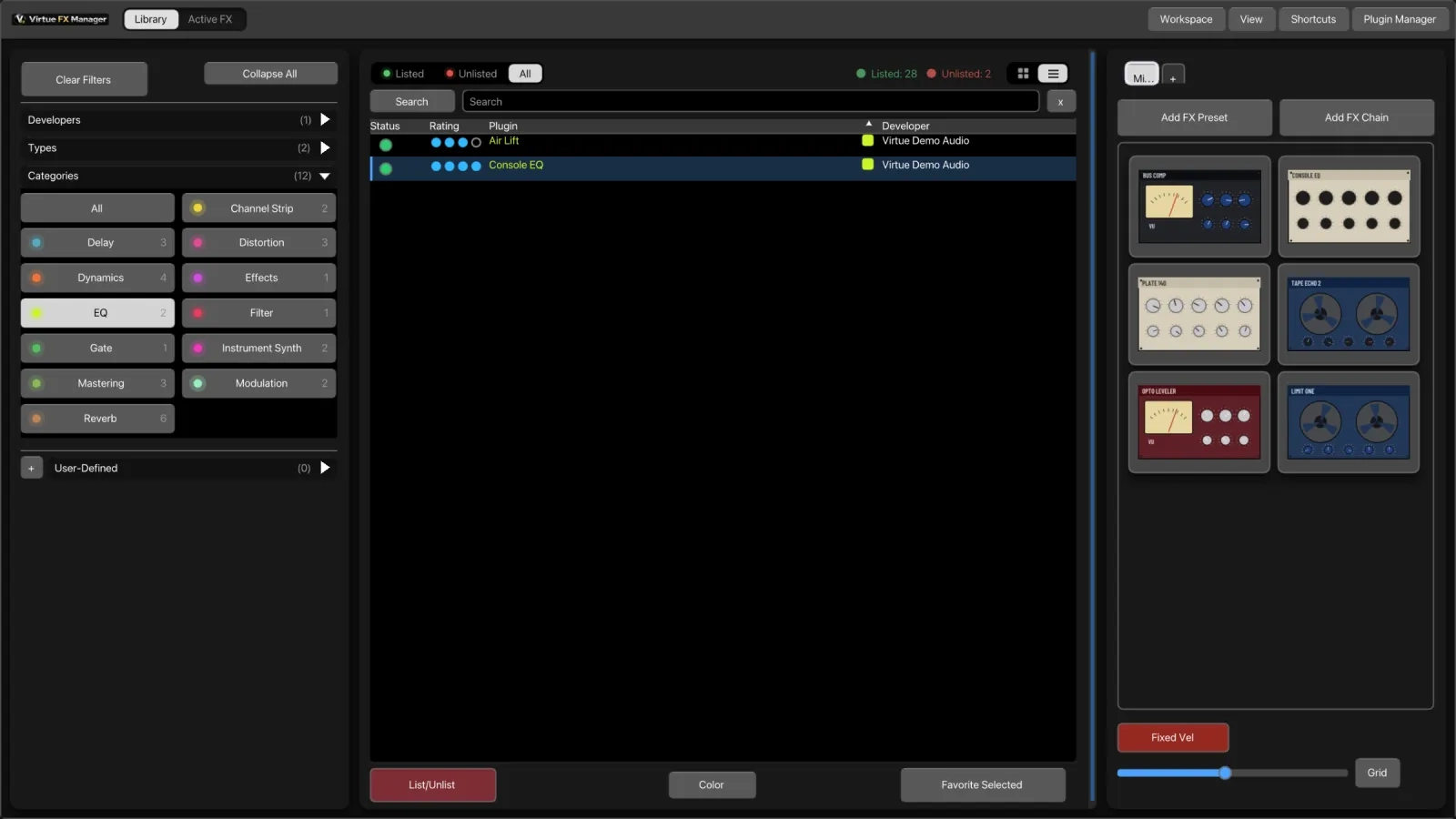
Categories and color coding
Every plugin is assigned an audio category on the first scan, from its name and type — EQ & Filters, Dynamics & Compressors, Reverb & Space, Delay & Echo, Modulation, Instruments & Synths, Distortion & Saturation, Utility & Meters, MIDI Processors and so on — and each category carries a colour. The sorting is there to save you the first hour, not to be argued with: everything can be recategorised.
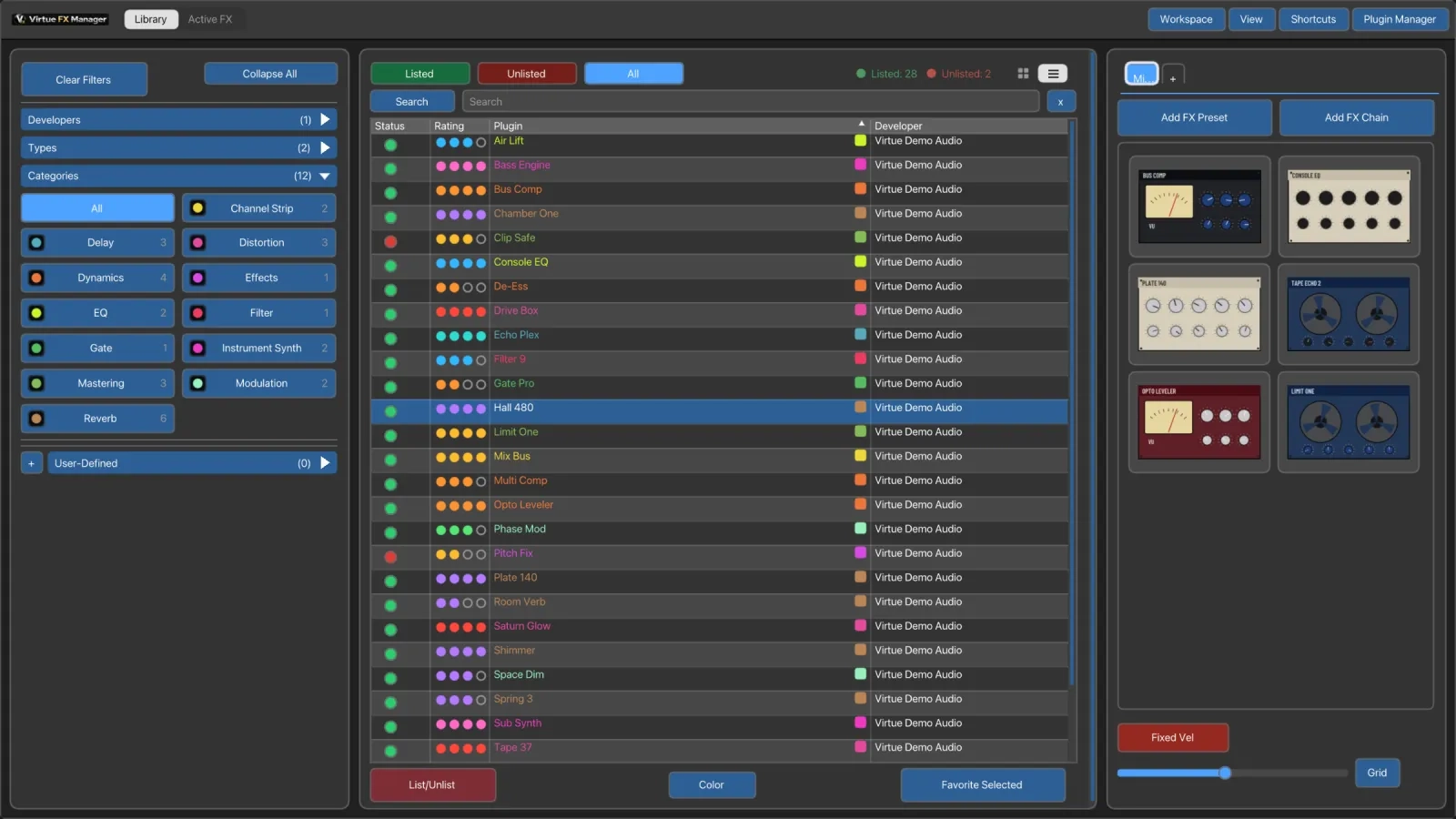
The Color/Uncolor button at the bottom of the plugin list colours each row by its category, which is useful for scanning a long, sorted list without reading every label. From 1.2.3 it is one button: greyed and dimmed when colouring is off, in the theme’s button colour when it is on.
Every category has its own colour
Section titled “Every category has its own colour”Dots or tags
Section titled “Dots or tags”A plugin often belongs to more than one category. Beside each plugin the list shows every category it belongs to — up to four as colour dots, or, from 1.2.3, as small colour tags that spell the category out.
Settings → Browser → Show categories as switches between the two (the same switch is in the plugin list header’s right-click menu). One or the other, never both, in the same space; dots stay the default. Tags cost width rather than height — the row stays exactly as tall — so on a narrow column you get as many tags as fit, in order, and a +N for the rest. The tag is a solid fill with a dark or light label chosen for readability against that colour.
Hover the dots or tags and a tooltip lists every category by name. Dots are right-aligned in their column, so plugin names still start flush left however many categories a plugin has.
Filing plugins into categories
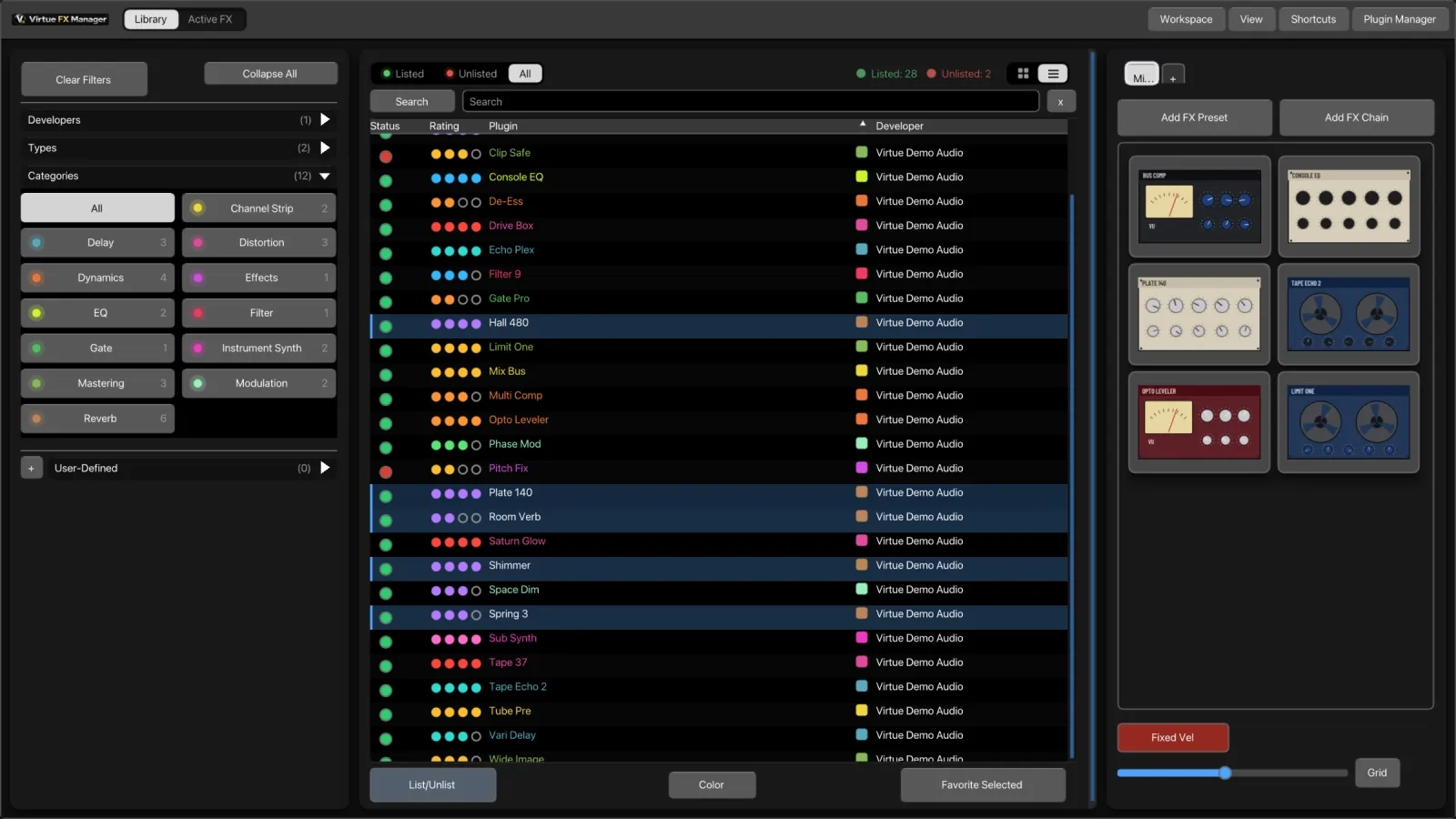
Section titled “Filing plugins into categories”- Right-click a plugin → Categorize, or press K with the selection you want. From 1.2.3 the Categorize window has two tabs, Categories and User-Defined, so your own categories are no longer hidden below the fold of the standard list. Clicking a chip applies at once; there is nothing to confirm.
- Cmd/Ctrl-click a category chip in the Filters panel to file every selected plugin into that category in one click (1.2.3). It is a toggle decided once for the whole selection: it adds, and removes only when every selected plugin already has that category, so a single click never splits a mixed selection. The filter itself stays where it is.
- Removing a plugin’s only category files it under Other — the same fallback the scanner uses — so the change is visible. Before 1.2.3 the window put the category straight back and nothing seemed to happen.
Your own categories
Section titled “Your own categories”- Click the + button in the filter sidebar to create a category on the spot, without opening the Categories manager. Your own categories appear in their own User-Defined section of the sidebar.
- Right-click any category chip — standard or your own — to open a colour wheel and set its colour.
The Categories manager lets you override a plugin’s category, rename categories, or reset everything back to these defaults.