Active FX inspector and monitoring
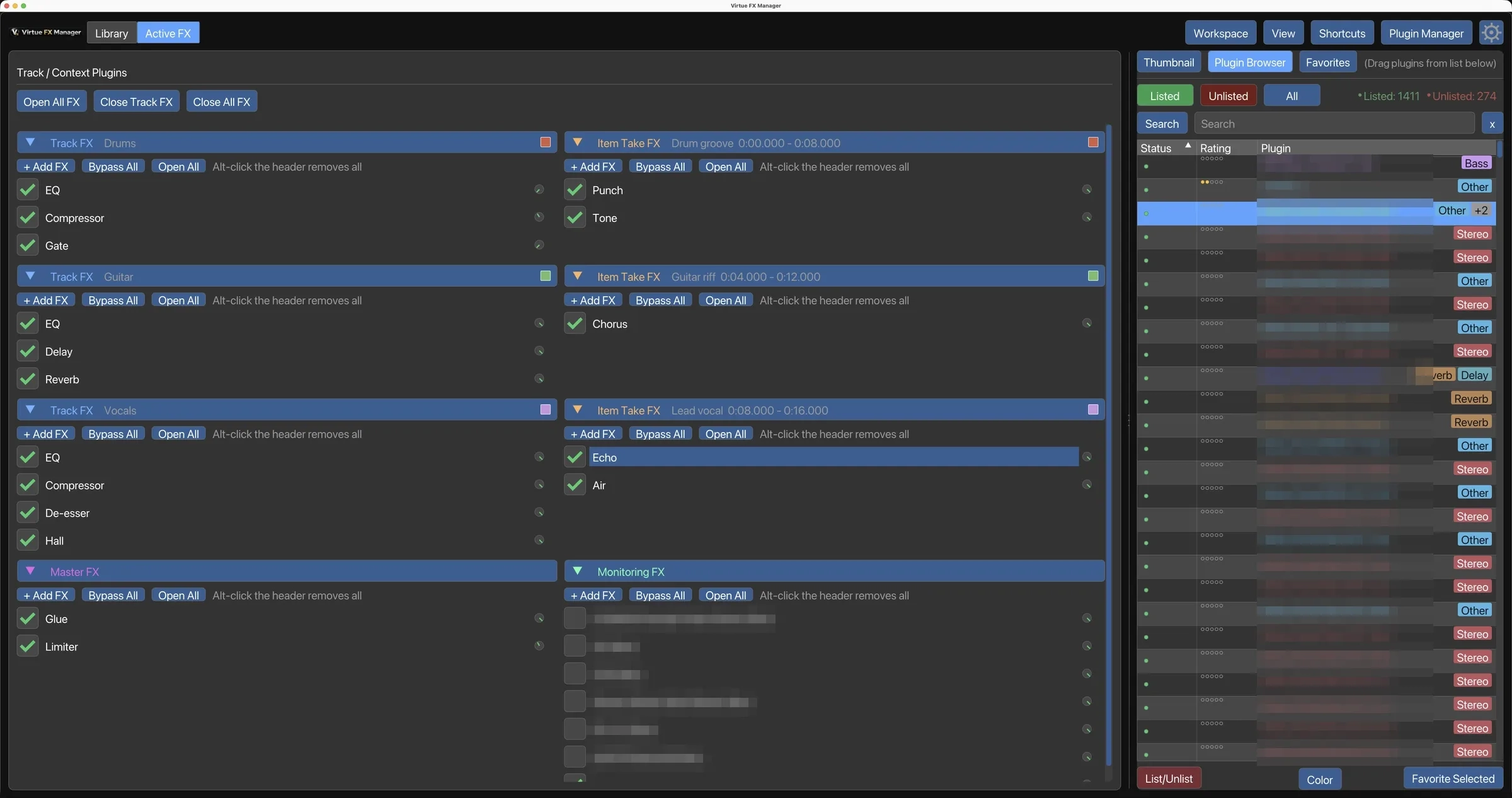
The Active FX tab shows every plugin currently loaded for what you have selected in REAPER, as a list of sections:
- Track FX — one section per selected track, in track order. A track that appears only because one of its items is selected says so in its header.
- Item Take FX — one section per selected item, beside its own track.
- Master FX — plugins loaded on the master track.
- Monitoring FX — plugins loaded in REAPER’s monitoring chain (hardware output, room correction, headphone compensation, master meters). This chain is never written into project files, so it’s a safe place for per-machine tools like Sonarworks or a room EQ that shouldn’t travel with the session.
Section headers
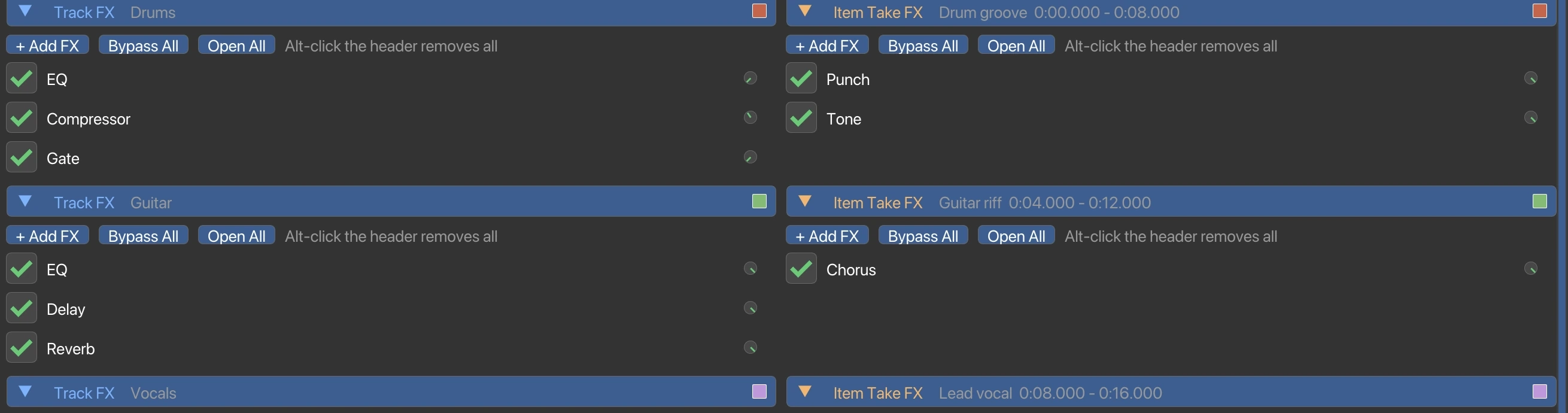
Section titled “Section headers”Each header names what it points at — Track FX names the track, Item Take FX shows the item’s in and out time — so two similarly named tracks do not have to be told apart somewhere else. The header also acts on the whole section:
- Add — insert a plugin into this chain.
- Bypass All — one toggle, and it says which way it will go: Bypass All while anything in the section is still enabled, Unbypass All once everything is bypassed.
- Open All / Close All — opens every FX window in that section, or closes them all. The label flips the same way: it reads Close All while any window in the section is open, and Open All when none are. One click gets a whole chain on screen to work through, and one click clears it again. (1.2.3)
- Alt-click the header to remove every FX in the section.
Each is a single undo.
Moving plugins between chains
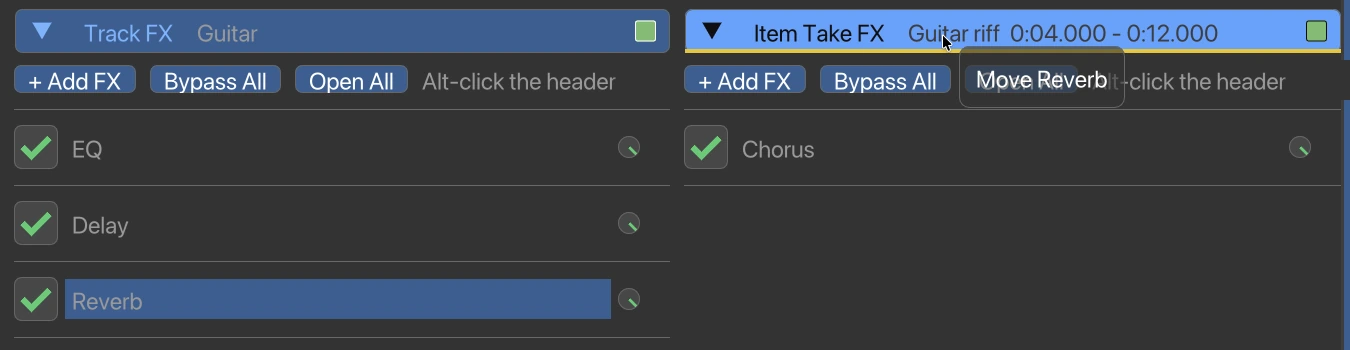
Section titled “Moving plugins between chains”Drag a plugin from any section to any other — Track FX, Item Take FX and Monitoring FX, in every direction. A plain drag copies, which matches REAPER’s own FX-chain convention; hold Alt while dragging to move it instead. Alt on a click still removes; the two are told apart by the same drag threshold as the rest of the interface, and letting go of Alt before the mouse button cancels the removal.
While you drag, the gap between two rows lights as a thick bar in the theme’s cue colour to show where the plugin will land. An empty section lights its (Empty) row. Dragging near the top or bottom of the list scrolls it, so a chain below the fold is still a drop target.
-
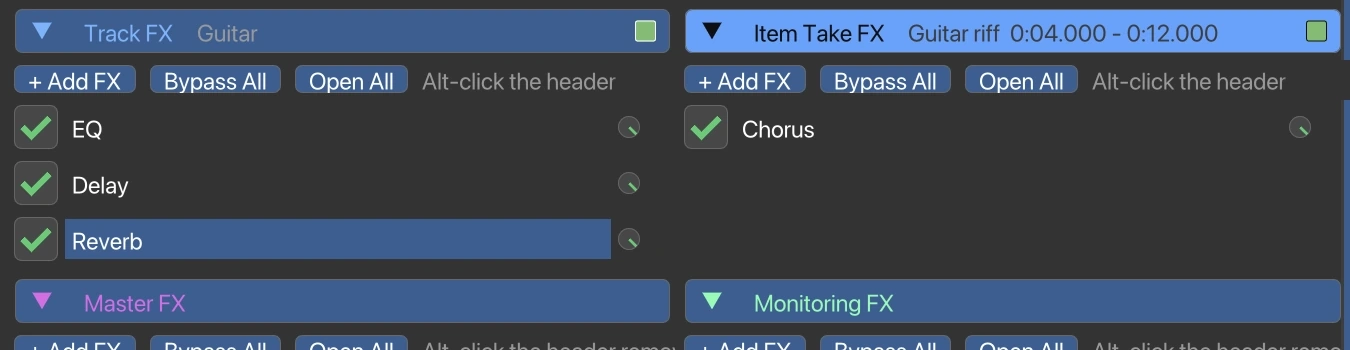
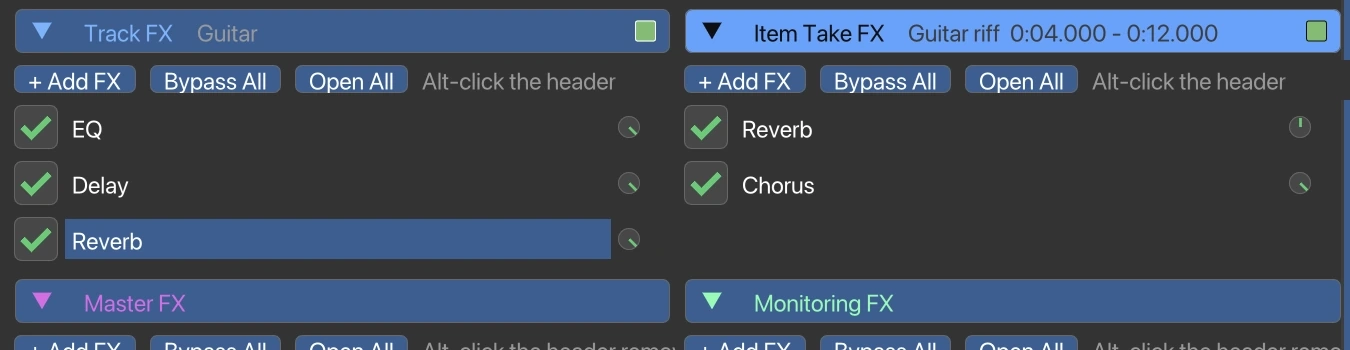
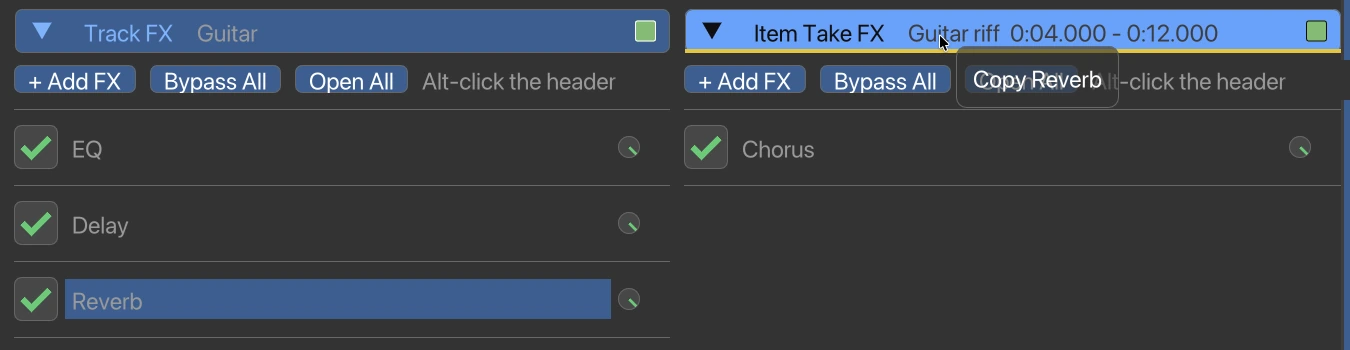
Track FX Guitar holds EQ, Delay and Reverb; Item Take FX Guitar riff, beside it, holds only Chorus.
-
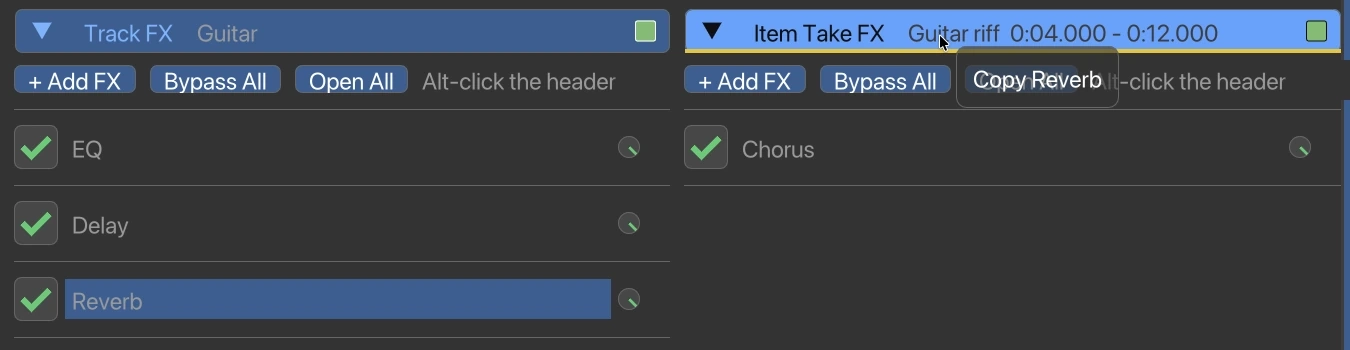
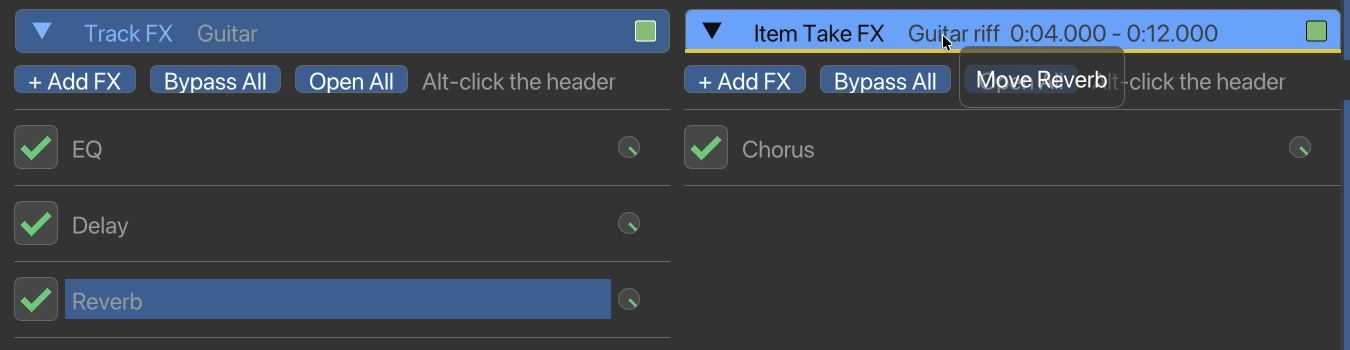
Dragging Reverb across onto the Item Take FX chain — a plain drag copies, so the tooltip reads “Copy Reverb”.
-
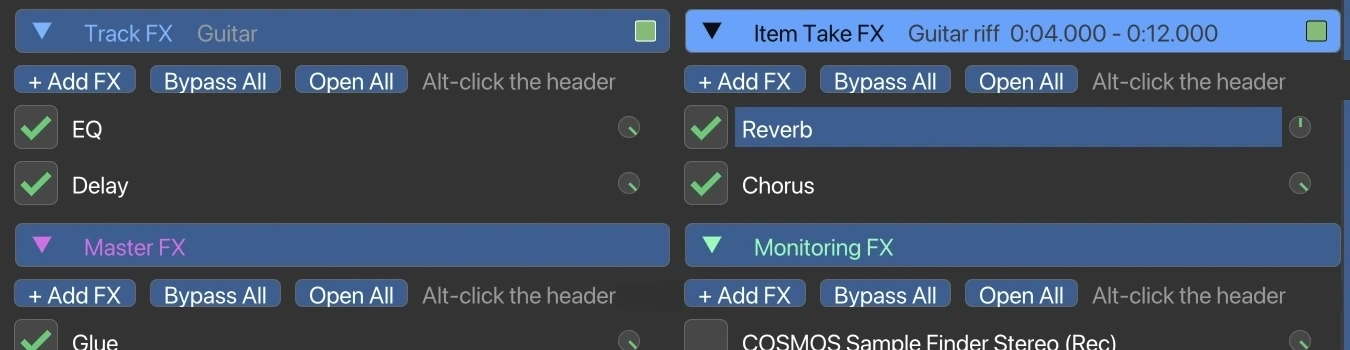
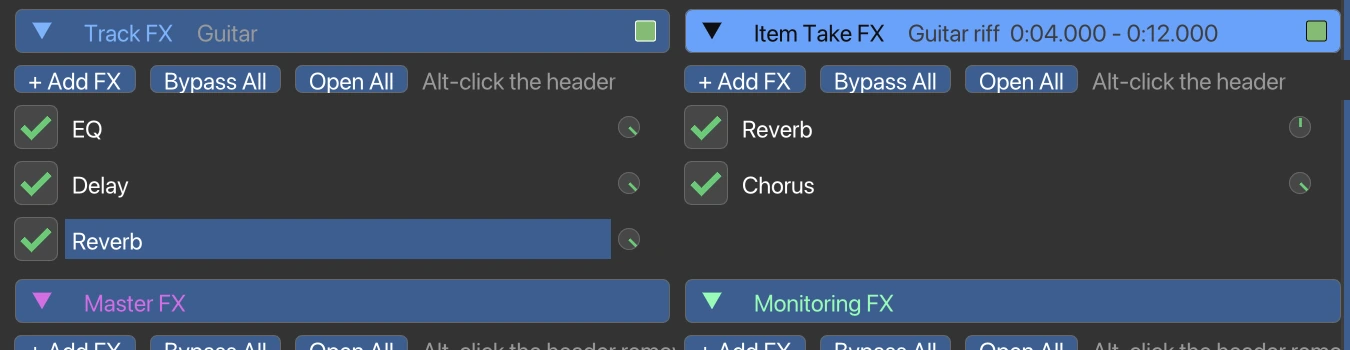
Reverb now sits in both chains — the original in Track FX was left in place.
-
Dragging Reverb again, this time holding Alt — the tooltip now reads “Move Reverb”.
-
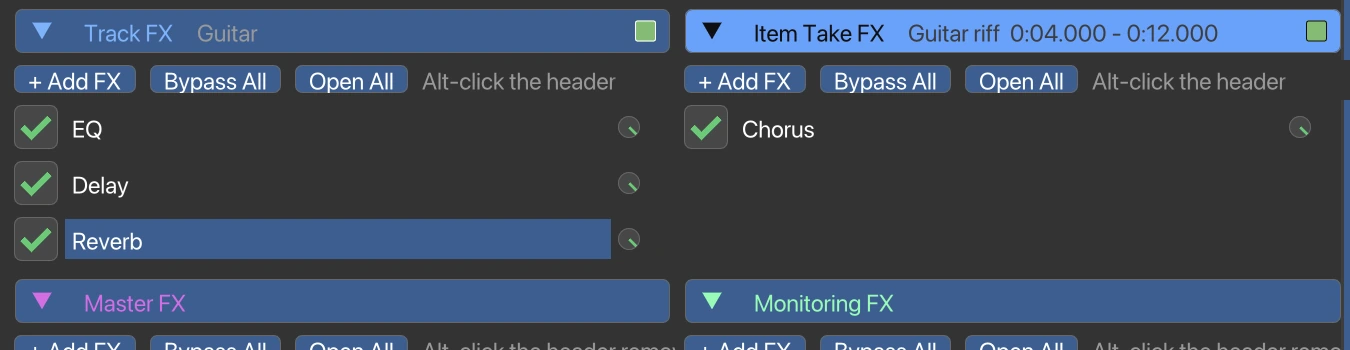
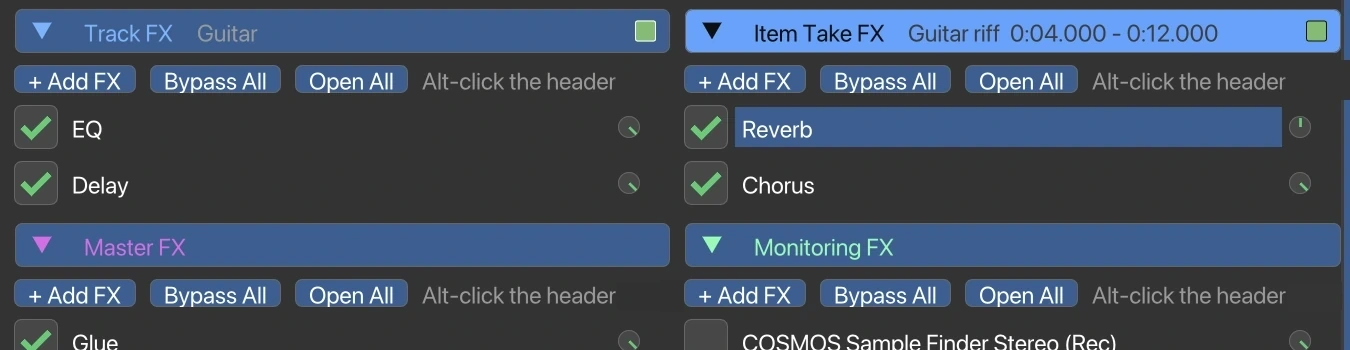
Reverb has moved: it is gone from Track FX Guitar and sits only in Item Take FX Guitar riff.
Controlling FX from the inspector
Section titled “Controlling FX from the inspector”- Reorder — drag plugins within the list to change processing order instantly.
- Float / unfloat — click the window icon on any loaded plugin to bring up its own UI, or bring an already-open one to the foreground.
- Bypass — toggle a plugin’s bypass checkbox directly, without opening its UI, to free CPU during a heavy mix session or A/B a chain.
- Details — select a plugin to view its notes and details.
- Remove — Alt + click a plugin to remove it from the chain.
- Insert on Master… — from the right-click menu of any plugin in the list, Favorites or the preview card, with a picker for the slot. See Insert plugins onto tracks.
Plugins that failed to load
Section titled “Plugins that failed to load”An effect REAPER could not load — because the plugin is no longer installed, or because it was taken offline — is shown in red and clearly marked, rather than sitting in the list looking normal.
Right-click it for:
- Set Offline — unload a plugin to free its CPU and memory while leaving it in the chain.
- Set Online — bring it back.
- Reload — try loading it again, after reinstalling the plugin or rescanning in REAPER.
A small reload icon also sits on the row itself, so you can retry without opening the menu.
A red row usually means the project was opened on a machine where that plugin is missing. Install it, then use Reload.
This is a control surface for FX that are already loaded — to insert a new plugin, see Insert plugins onto tracks.