Insert plugins onto tracks
VFxM never inserts a plugin without an explicit action from you — no idle scanning or automatic loading. Every method below is a deliberate click or drag.
Double-click or Enter
Section titled “Double-click or Enter”Double-click any plugin card or list row, or select it and press Enter, to load it onto the currently selected REAPER track. From 1.2.5 a single click only selects.
- Shift+Enter inserts on a new track. (1.2.5)
- Alt+Enter asks where on the Master to insert. (1.2.5)
When you insert, the plugin’s picture flies to the Active FX tab, which glows and shows +1 (or +N). REAPER inserts at once; nothing waits for the animation, and Settings → Theme → Animations turns it off. (1.2.5)
Drag to a track
Section titled “Drag to a track”- Drag to the Track Control Panel (TCP) — drop a plugin card onto any track header on the left side of the arrange window to insert it on that track.
- Drag to the Mixer Control Panel (MCP) — drop a card onto any channel strip in REAPER’s mixer to insert it into that channel’s FX chain.
Either way, the plugin lands on the track under your cursor, not on whatever track happens to be selected.
Drag to empty space — auto-create a track
Section titled “Drag to empty space — auto-create a track”Drag a plugin card onto empty arrange space and VFxM creates a new track for you and loads the plugin onto it. This is the fastest way to start a new channel from scratch.
Insert on Master, at the slot you choose
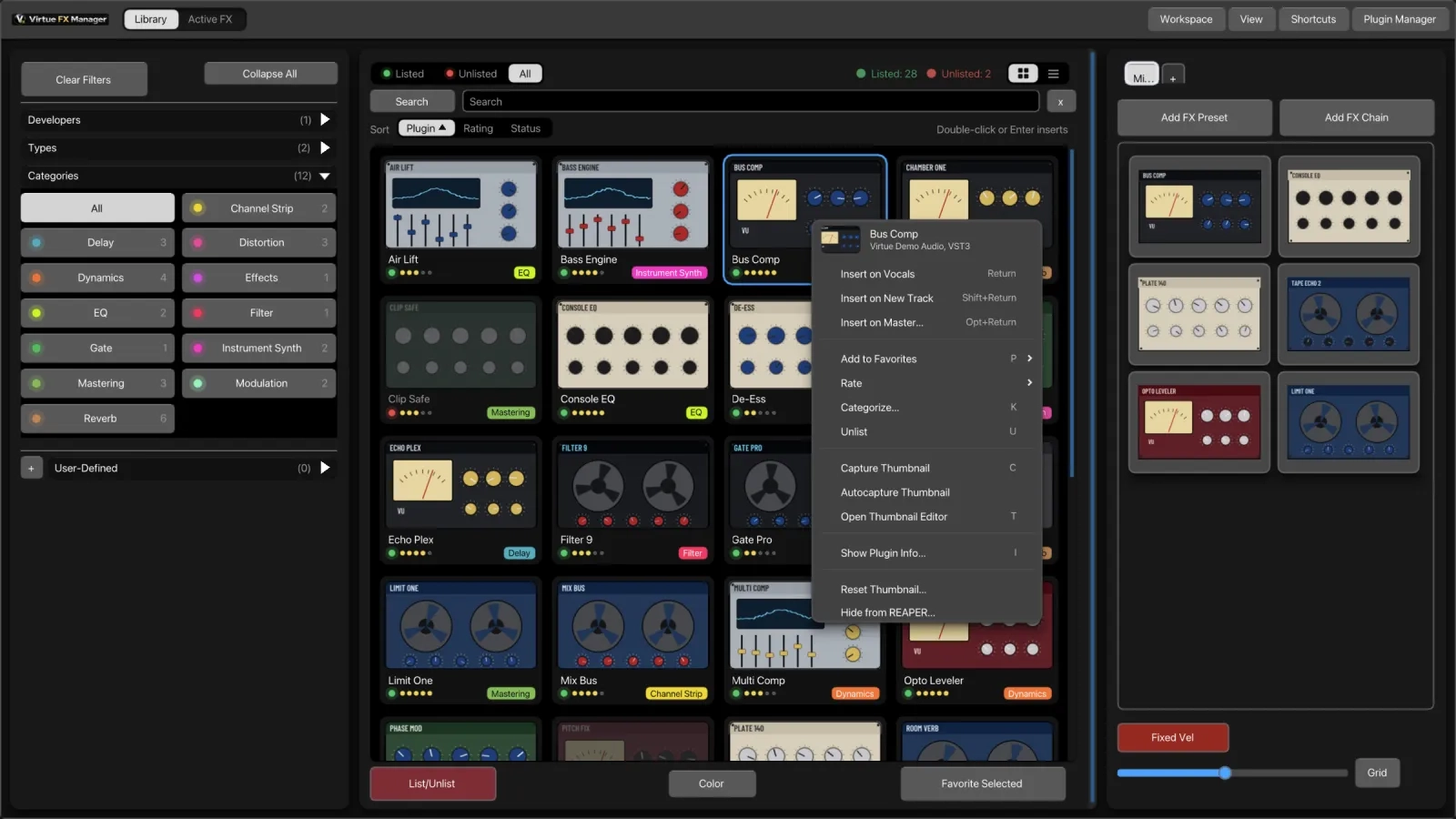
Section titled “Insert on Master, at the slot you choose”Right-click a plugin — in the list, in Favorites, or on the preview card — and pick Insert on Master…. A small picker opens with the Master’s current FX chain laid out and a place to drop the plugin before each effect, plus one at the end. An empty Master chain still offers you a spot. (1.2.3)
Drop into an Active FX chain
Section titled “Drop into an Active FX chain”Drag a plugin from the list or Favorites onto any section of the Active FX list. The gap between two rows lights as a thick bar in the theme’s cue colour to show exactly where it will land; an empty section lights its (Empty) row. Dragging near the top or bottom edge scrolls the list. (Cue redrawn in 1.2.3.)
A preset favourite dropped onto an Active FX section applies the preset there. (1.2.5)
Instrument vs. effect tracks
Section titled “Instrument vs. effect tracks”VFxM knows the difference between instrument formats (VSTi, VST3i, AUi, CLAPi) and effect formats. Dropping an instrument creates a MIDI-ready track; dropping an effect creates a standard audio/effect track.
Multi-select batch insert
Section titled “Multi-select batch insert”Select multiple plugins with Cmd/Ctrl + Click or Shift + Click, then drag or double-click the selection to load the whole set sequentially onto the target track — useful for loading a saved processing chain in one action.
Favourites boards let you save a multi-plugin chain permanently to a single slot so you don’t have to reselect it every time.