Common licensing issues
For how activation itself works, see Activate your license. This page covers what to do when it doesn’t go as expected.
“My license key is not accepted”
Section titled ““My license key is not accepted””- Paste the
VFXM-key from your purchase email. Upper or lower case both work, and spaces around it are ignored. If VFxM says the value is the internal licence id, use the key from the purchase email instead. - The key must match Virtue FX Manager specifically and be in
activestatus. - If you refunded and repurchased, the old key was deactivated — use the new key from the new order confirmation.
- If you’re at your activation limit, see the next section.
“I reached my activation limit”
Section titled ““I reached my activation limit””Each license has 2 concurrent activations. At the limit, VFxM tells you how many devices are in use and that deactivating one frees a slot. Re-activating a machine you already activated does not count twice.
- Free up a seat from a machine you still have access to: in VFxM, go to Settings → Deactivate.
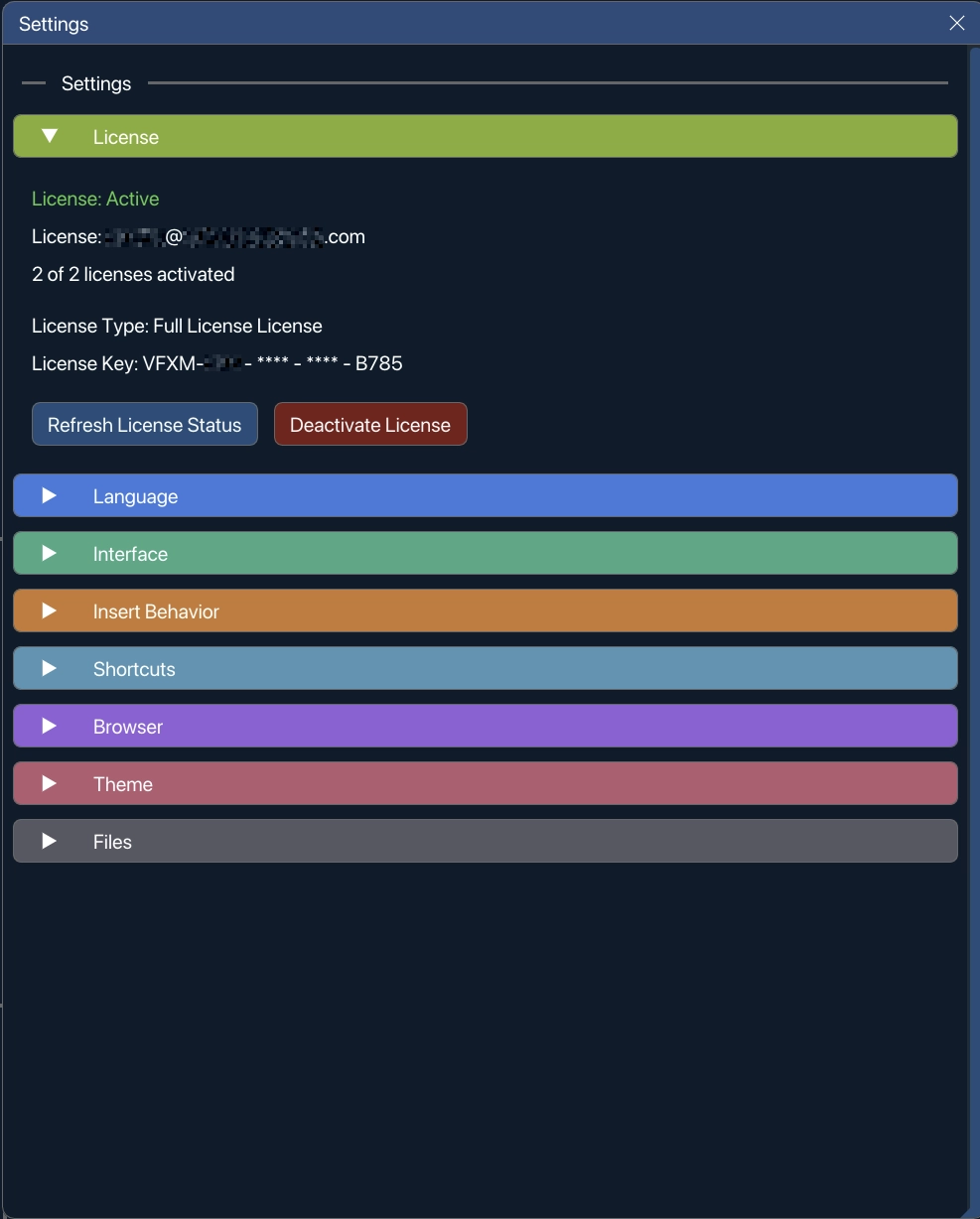
- Lost access to the old machine? Use the License Portal to reset all activations for your key, or the splash screen’s Reset & Re-bind All Activations to This Machine option (added in 1.1.1) if you’re on the new machine already.
“The app says offline grace expired”
Section titled ““The app says offline grace expired””Versions before 1.1.1 asked for one online check after 10 days offline. As of 1.1.1 that limit is gone: once activated, a machine stays licensed offline indefinitely. If you see this message, update to the latest version — see Working offline for details.