Visual browser, camera & clipboard thumbnails
VFxM is built around browsing plugins by their actual interface, not a generic text row.
Layout
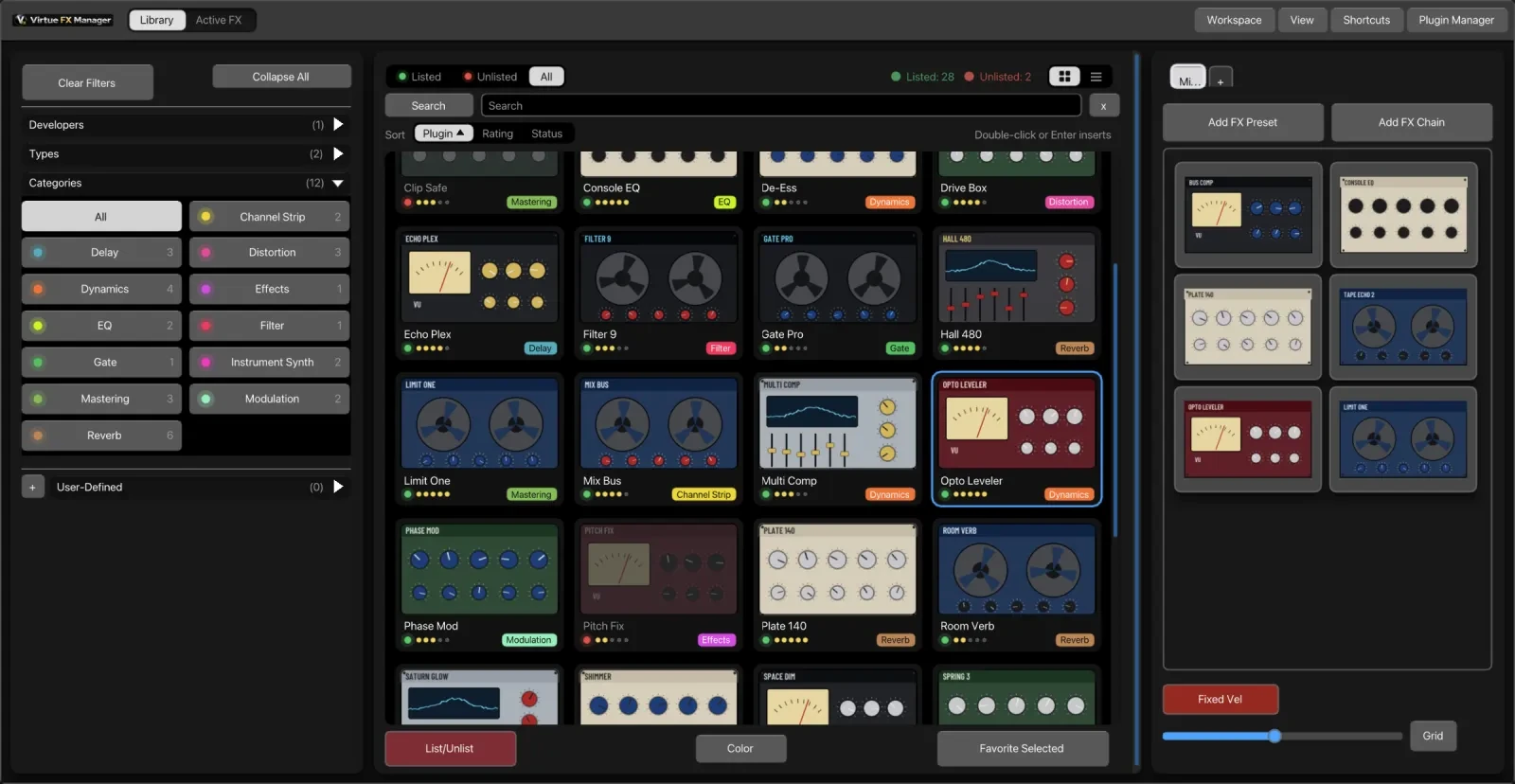
Section titled “Layout”Your library is one panel of plugins, and the other panels sit beside it:
- Plugins — every scanned plugin. From 1.2.5 it opens on picture cards; a Pictures | List switch at its top right brings back the list. See Pictures and List below.
- Favourites — the thumbnail panel. It has two views, a grid of cards and a compact list, and the toggle between them is the view button in the panel’s footer, or G. It opens in grid view. The slider beside that button sizes the thumbnails.
- Preview — the selected plugin’s thumbnail on its own, as large as the panel is.
Every panel is shown or hidden from View, or with 1 to 5, and the arrangement can be kept as a workspace.
Pictures and List
Section titled “Pictures and List”(1.2.5) Each picture card shows the plugin’s picture, its name, a Listed/Unlisted lamp, its rating and its category chips.
- Double-click or Enter inserts. A single click only selects.
- Cards do everything rows do: Shift and Cmd/Ctrl selection, drag to a track, the right-click menu, and Go to selected.
- Sort above the cards: Plugin, Rating or Status. Click the lit one again to reverse.
- Cmd/Ctrl+A selects every plugin shown.
- Picking a category re-deals the cards, in about half a second. The list view does not animate. Settings → Theme → Animations turns all motion off.
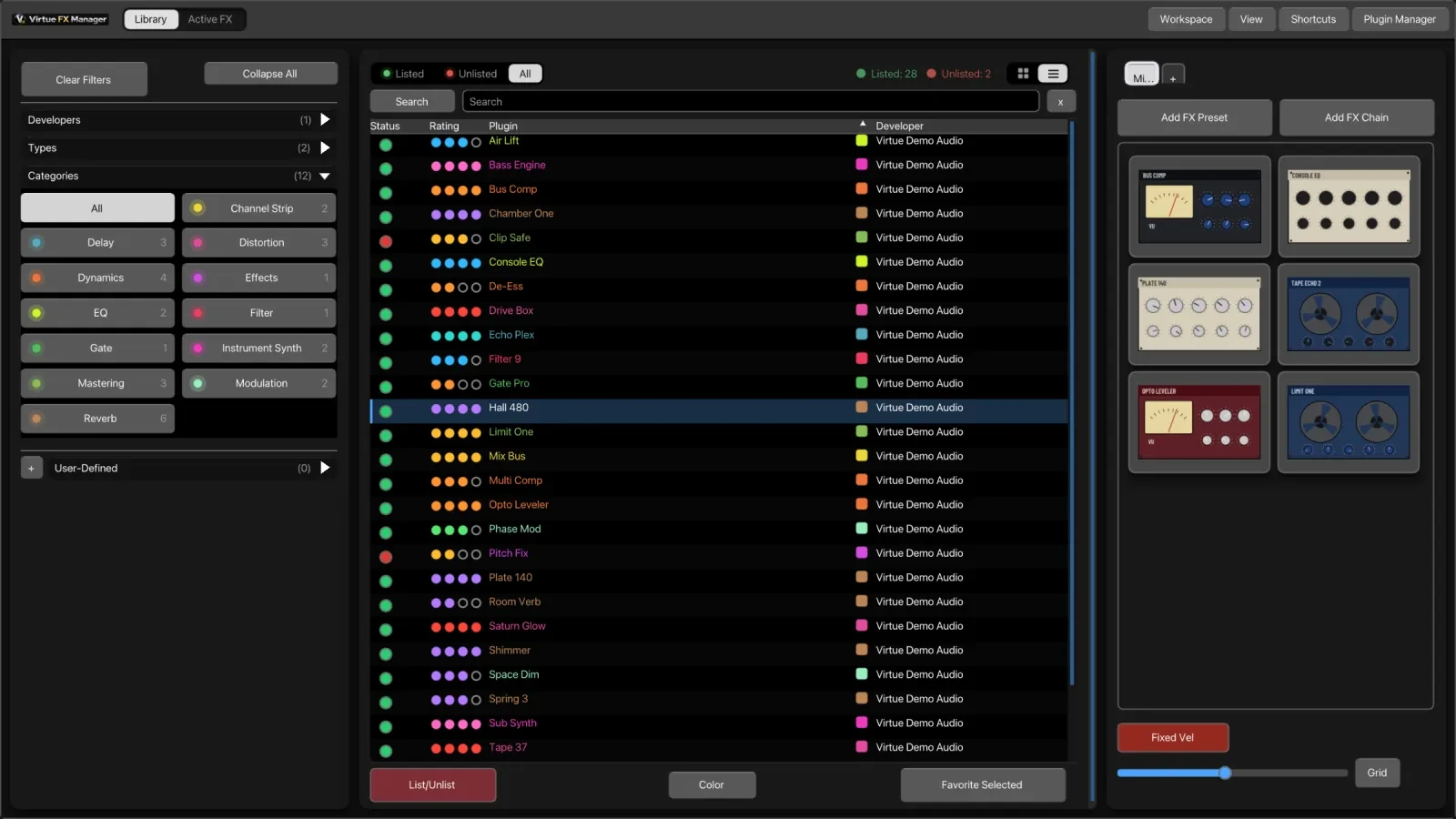
The Pictures | List switch at the top right of the Plugins panel changes the view. The list is unchanged from earlier versions, and a saved List choice is kept. The rest of this page describes the list.
The right-click menu
Section titled “The right-click menu”(1.2.5) Every right-click menu is redesigned, and a plugin’s menu shows its picture in the header. From a card or a row: P adds the plugin to the open Favorites tab, I shows plugin info, Shift+Enter inserts on a new track and Alt+Enter asks where on the Master to insert.
Sorting the list
Section titled “Sorting the list”In list view, click the Rating, Plugin or Developer column header to sort by it; click again to reverse the order. The header row stays pinned while you scroll, and visible dividers separate the columns.
Developer names are tidied automatically, so you do not read “Pro-Q 3 (FabFilter)” in a list beside a column that already says FabFilter. From 1.2.3 a short prefix before a colon leaves the shown name too — “JS: Chorus” shows as Chorus — and the search box matches the name you see, not the raw cache text.
Right-click the column header to show or hide the Status, Rating and Developer columns. The same switches are in View → Columns and Settings → Columns; all three read one list. (1.2.3)
Selecting a row highlights the whole row, every column, not the Plugin cell alone. (1.2.3)
A Color/Uncolor button at the bottom of the list switches category colouring on and off — greyed and dimmed when it is off — and a × in the search box clears it. Categories beside each name show as dots or as tags; see dots or tags.
The search box also clears itself once you have clicked away and left it alone — after 20 seconds by default. Both the delay and whether it happens at all are set in Settings → Interface; see General settings.
Capturing thumbnails
Section titled “Capturing thumbnails”Camera capture
Section titled “Camera capture”Open the plugin’s own interface in REAPER, hover its card in VFxM, and click the camera icon (or press C while hovering) to capture, crop, and store a screenshot as its thumbnail.
Clipboard paste
Section titled “Clipboard paste”Copy any image — a screenshot, a graphic, a file — to your OS clipboard, hover a plugin slot in VFxM, and press Cmd/Ctrl + V to paste it as that plugin’s thumbnail directly.
This pairs well with your OS’s own screenshot shortcut: Cmd + Shift + 4 on macOS, Win + Shift + S on Windows. Undo is fully supported with Cmd/Ctrl + Z.
Batch capture
Section titled “Batch capture”For your whole library at once, use the auto thumbnail scanner instead of capturing one at a time.
If a capture comes out half-drawn
Section titled “If a capture comes out half-drawn”Heavy GPU or OpenGL plugin interfaces can take a moment to finish drawing. Wait until the plugin’s window is fully painted before you capture it, and capture again if the first attempt caught it mid-render — a new capture replaces the old thumbnail. There is no capture-delay setting.
Star ratings
Section titled “Star ratings”The Rating column carries five dots per plugin that you set by clicking them. See Star ratings.