Favourites boards
Favourites boards are custom tabs you build for the plugins and chains you actually reach for — instead of hunting through your whole library every session.
Creating a board
Section titled “Creating a board”Click the + tab button to create a new board and name it for the job it’s for — Vocals, Drums, Mastering, Guitars, Synth Rig.
Banks — a second level above tabs
Section titled “Banks — a second level above tabs”As a collection grows, a single row of tabs becomes a long, crowded line you have to hunt through. Banks give you seven complete, independent sets of boards instead of one endless row.
Click the folder icon at the left of the tab row to switch banks. Each bank holds its own boards and its own contents, and remembers which of its tabs you had open.
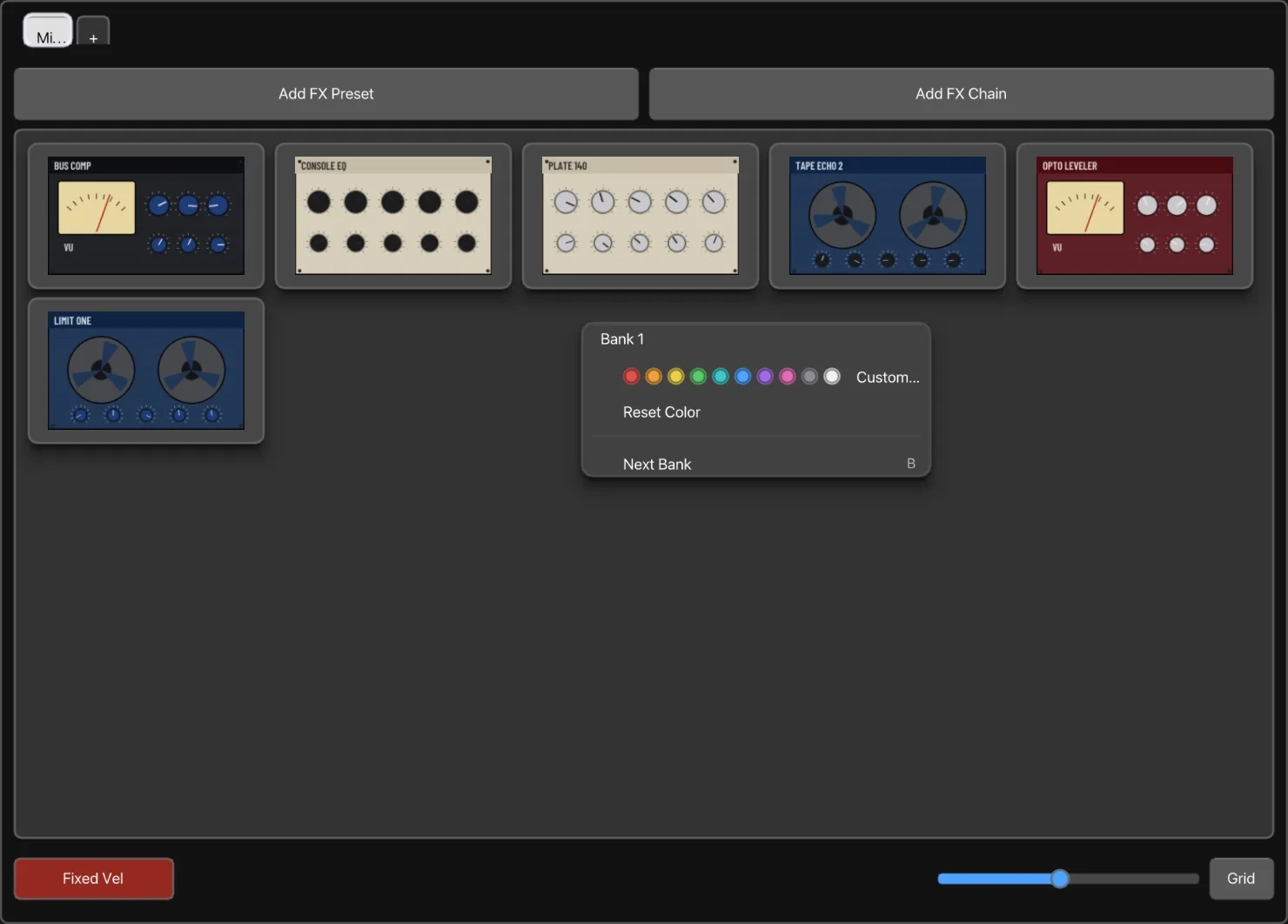
- Right-click the folder icon to give a bank its own colour. The icon takes that colour, so you can tell at a glance which bank you are in.
- Banks holding favourites appear in bold in the switcher; empty ones are dimmed.
- Right-click any board tab → Move to Bank to send that board and everything in it to another bank.
Banks are entirely optional. If one row of tabs suits you, stay in Bank 1 and nothing changes.
Organizing slots
Section titled “Organizing slots”- Drag to reorder — drag slots within a board to reorder your processing chain.
- Multi-plugin chain staging — map a whole FX chain onto a single favourite slot, so one double-click loads an entire vocal or guitar rig in the right order. See Insert plugins onto tracks for how multi-selection feeds into a slot.
- Overlay names — Edit Overlay Name writes a short label across a slot’s thumbnail, so a board reads at a glance and not only by plugin name. Clear Overlay Name takes it off again. Both are on the right-click menu and in the Preview panel, and neither changes how the plugin appears anywhere else in VFxM.
- Tab colours — each board tab takes its own colour, and each bank takes one too, so boards are told apart by colour as well as by name. See managing boards below.
The right-click menu
Section titled “The right-click menu”From 1.2.3 the right-click menu on a favourite is in four sections, by what each entry does:
- Insert — Add to track, Create track, Insert on Master… (with a picker for the slot).
- Thumbnail — Capture Thumbnail, Autocapture Thumbnail, Edit Overlay, Clear Overlay. Capture and Autocapture are about the plugin behind the favourite, and the new image lands on the tile straight away. On a preset or chain, Autocapture is greyed with the reason — it photographs a plugin window unattended, and a preset has no window of its own — while Capture stays available.
- Organise — Find on list, Rename Preset, Inspect Preset, Move to Tab, Copy to Tab.
- Remove — Remove Selected, Delete Preset Favorite.
Right-click inside a multi-selection and the menu acts on all of it; right-click a favourite outside the selection and it acts on that one alone.
Imported REAPER chains
Section titled “Imported REAPER chains”.RfxChain files brought in from
Importing from REAPER
behave like any other favourite: they take artwork, notes and renaming, carry
their own badge in the grid, and load on a double-click or a drag.
Managing boards
Section titled “Managing boards”Right-click a board tab for:
- Move to Bank / Copy to Bank — shown once you have more than one bank. Move sends the board and its contents elsewhere; Copy leaves it here as well, for a set you want reachable from two banks without building it twice.
- Rename — edits the name in place on the tab.
- Delete — removes the board and everything on it, after a confirmation.
- Reset Color, and the colour controls below it — the tab’s own colour.
Drag a tab along the tab row to reorder your boards. The first board cannot be renamed, deleted, moved or copied; the rest can.
Saving FX off a track
Section titled “Saving FX off a track”Add FX Preset and Add FX Chain, under the Favourites list, save a plugin or a whole chain from the selected REAPER track straight onto the board you are looking at. See FX presets and FX chains.