Keyboard shortcuts
Every shortcut on this page can be changed — see changing a key below. All but Undo and Redo are single keys. The keys are listed here in the same groups the Shortcuts menu uses, so the two read the same way round.
Panels and layout
Section titled “Panels and layout”| Action | Default key |
|---|---|
| Hide or show the tab of the panel under the mouse | V |
| Hide or show every panel tab at once | A |
| Reset the panel layout to the default arrangement | 0 |
| Next saved workspace, wrapping after the last one (1.2.3) | R |
| Show or hide Preview | 1 |
| Show or hide Favorites | 2 |
| Show or hide Notes | 3 |
| Show or hide Plugins | 4 |
| Show or hide Filters | 5 |
The number row follows the order the View menu lists the panels in, so the menu can print each key beside its entry. Reset sits at the head of that row on 0 because it undoes whatever the keys after it have done.
Every entry above is also in the View menu, with its key printed beside it, so nothing here is keyboard-only. Two View entries have no key of their own:
- Panel Tabs — the ticked toggle for all panel tab bars, the same thing A does.
- What’s New… — reopens the release-notes panel at any time, not only on the first run after an update.
Getting around
Section titled “Getting around”| Action | Default key |
|---|---|
| Go to Library | Q |
| Go to Active FX | W |
| Active FX: switch between the plugin browser and the thumbnail | E |
| Jump to the search box and start typing | S |
| Go to selected plugin — find it in the Browser list (called “Find in list” before 1.2.3) | F |
| Open this shortcuts window | H |
Favorites and banks
Section titled “Favorites and banks”| Action | Default key |
|---|---|
| Switch Favorites between grid and list | G |
| Go to the next bank that has tabs in it | B |
| Go straight to Bank 1–7 | F1–F7 |
B steps through the banks in order and wraps at the last one. It stops only on banks that hold something of their own, because landing on an empty bank reads as the key having done nothing. F1–F7 go straight to a bank whether it is empty or not — that is the point of naming one.
Working the plugin list
Section titled “Working the plugin list”| Action | Default key |
|---|---|
| List or unlist the selected plugin | U |
| Clear every filter and the search | X |
| Deselect everything | D |
| Open Categorize for the selection (1.2.3) | K |
| Add the selection to the open Favorites tab (1.2.5) | P |
| Show plugin info (1.2.5) | I |
| Insert the selection | Enter or double-click |
| Insert on a new track (1.2.5) | Shift+Enter |
| Insert on the Master — asks where (1.2.5) | Alt+Enter |
| Select every plugin shown (1.2.5) | Cmd/Ctrl+A |
| Turn Hijack on or off inside VFxM (1.2.5) | J |
K is printed beside Categorize in the right-click menu, so you meet it where you already are. The Categorize window has two tabs, Categories and User-Defined — see Categories and colour coding.
Thumbnails
Section titled “Thumbnails”| Action | Default key |
|---|---|
| Open or close the Thumbnail Editor | T |
| Capture a screen area as a thumbnail | C |
C works without the Thumbnail Editor open: select a plugin, favourite, preset or chain and press it. With nothing usable selected it says so rather than appearing to do nothing.
Modifiers and gestures
Section titled “Modifiers and gestures”These are platform conventions rather than bindable keys.
| Action | macOS | Windows |
|---|---|---|
| Extend a selection across the browser or favourites | ⌘ or ⇧ + Click | Ctrl or Shift + Click |
| File the whole selection into a category — a toggle (1.2.3) | ⌘ + Click a category chip | Ctrl + Click a category chip |
| Close a popup, then the VFxM window | Esc | Esc |
Undo and redo
Section titled “Undo and redo”| Action | Default |
|---|---|
| Undo a Favorites or Thumbnail action | Cmd/Ctrl+Z |
| Redo | Cmd/Ctrl+Shift+Z |
From 1.2.3 these are bindable chords like any other shortcut; before that they were fixed to the platform convention. Cmd and Ctrl count as one modifier, so a binding made on a Mac reads as Ctrl on Windows and back again. When VFxM has nothing left to undo it still hands the key to REAPER.
Keyboard layouts
Section titled “Keyboard layouts”From 1.2.5 shortcuts follow your keyboard layout — AZERTY, QWERTZ and others, Redo included.
Changing a key
Section titled “Changing a key”Shortcuts → Edit Shortcuts… on the top bar (up to 1.2.2: Settings → Shortcuts). Click the key beside an action, then press the key you want. Letters, numbers and F1–F12 are accepted.
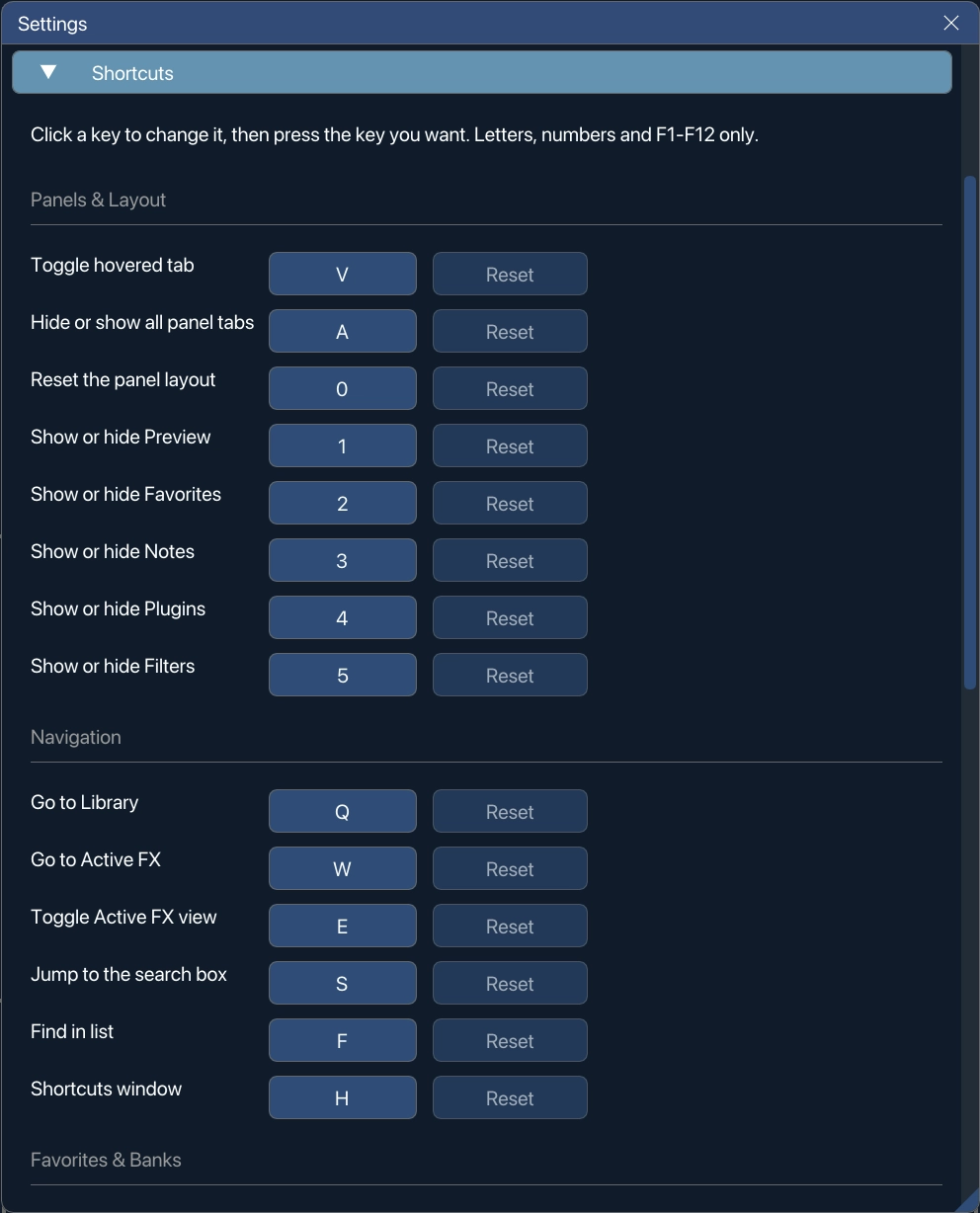
- A key already in use is refused, and the row says which action holds it, so two actions can never end up on one key.
- Reset returns a single action to its default. It is greyed out until you have actually changed that one, and hovering it tells you which key it will go back to.
- Clearing a binding leaves the action with no key at all. That is allowed and is remembered; it is not the same as resetting to the default.
Your bindings are stored with the rest of your settings and survive updates. From 1.2.3 they can also be exported to a file and imported on another machine — see moving your shortcuts.
While you are typing
Section titled “While you are typing”Single-key shortcuts stand down whenever they would interrupt text entry. Esc is the clearest case: it closes a popup, or the VFxM window, but not while a text field, popup, splash screen or inline thumbnail manager has focus. You can type “escape” into a search box, a rename field or a note without the window going out from under you.
See also: Insert plugins onto tracks for the drag-and-drop gestures these shortcuts complement.